3D world
How to make a 3D scene with a world node and work with objects and the viewpoint in the world editor.
A "World" node holds a 3D scene inside the canvas. You place objects and move the viewpoint to build the space of a scene. This page explains how to create a world node, the world editor screen, and its keyboard shortcuts.
Create a world node
Choose "World" from "Add node"
Click "Add node" (+) in the left toolbar, or right-click an empty spot on the canvas. Choose "World" in the menu (its description reads "3D scenes, Marble worlds").
Choose how to build it
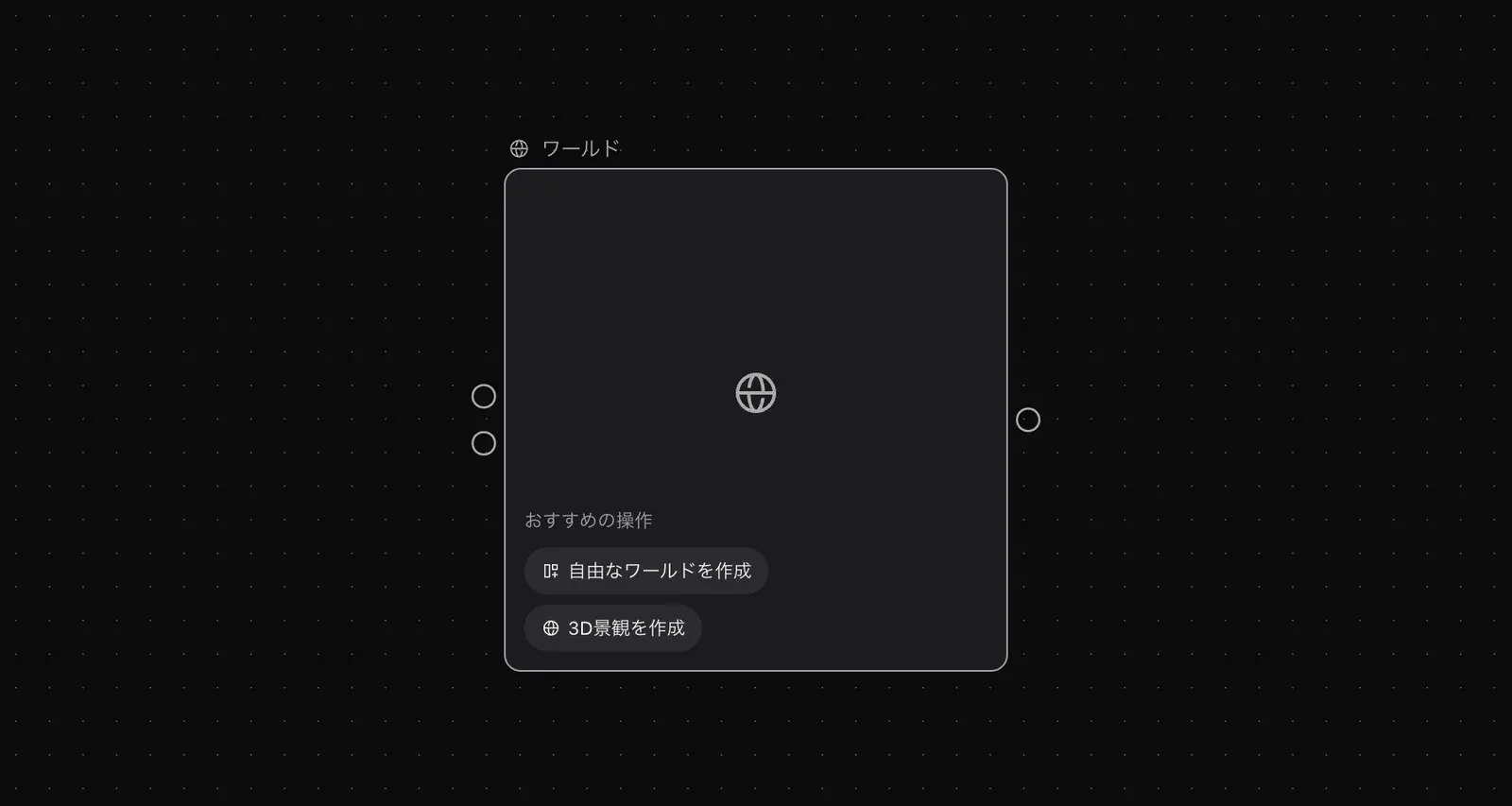
The new node shows "Create free world" and "Create 3D landscape" under "Recommended Action". To place objects yourself, click "Create free world". The world editor opens full screen.
Return to the canvas
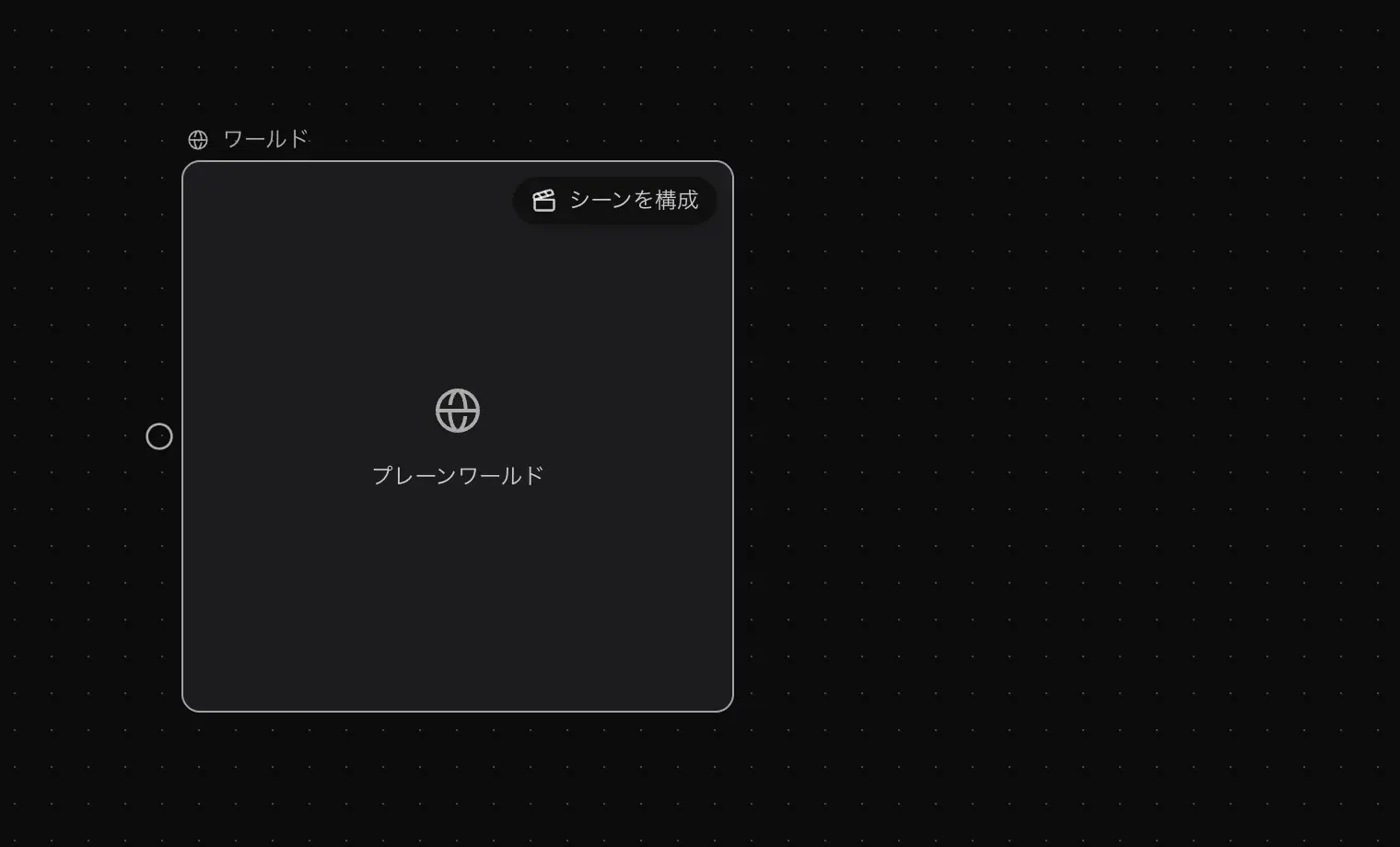
When you finish editing and return to the canvas, the node shows "Plain world". A "Compose scene" button is at the top right.
The world editor
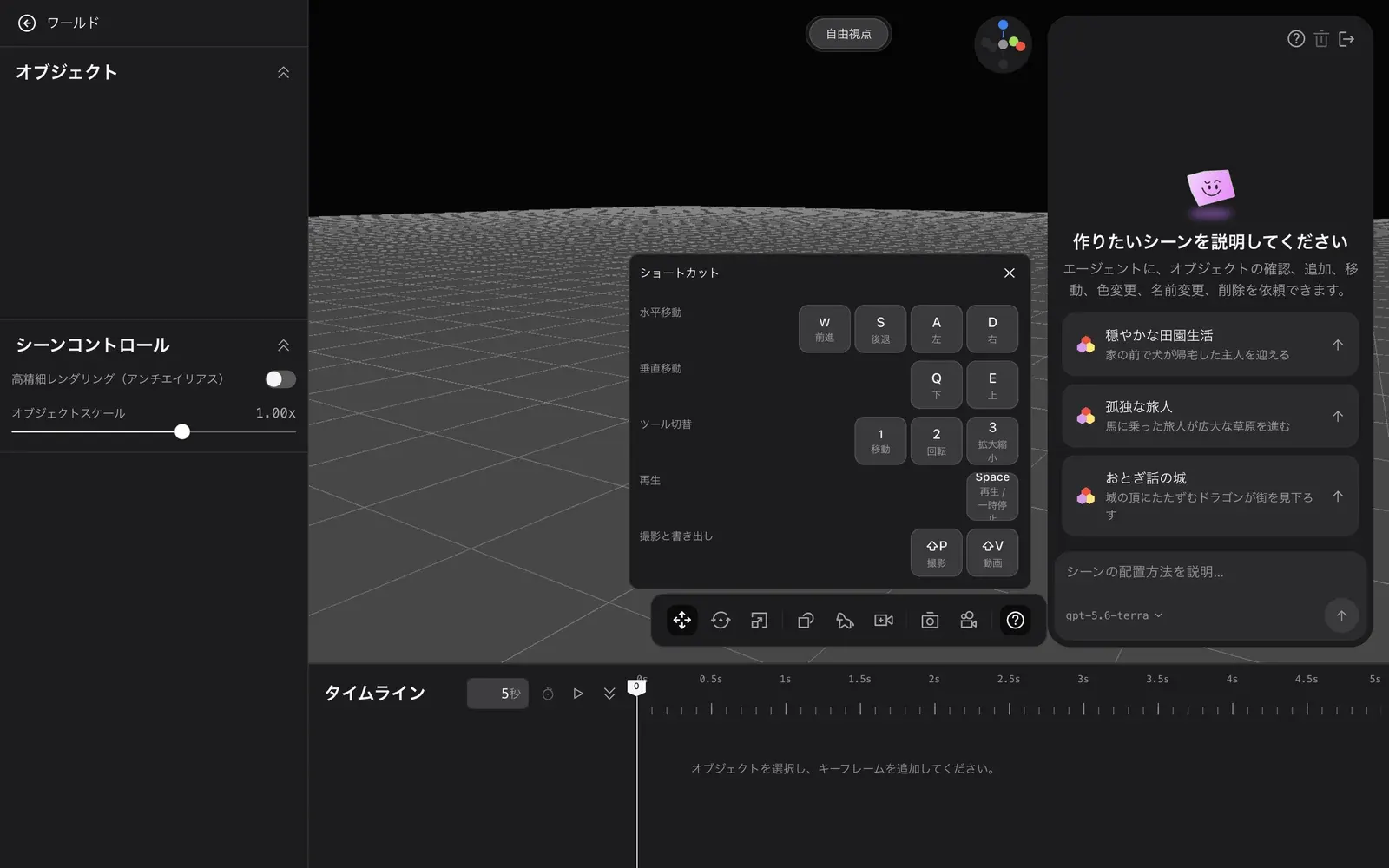
- Left side. The "Objects" list and "Scene controls". In "Scene controls", you can set "Fine rendering (anti-aliasing)" and "Object scale".
- Top. Shows "Free view".
- Bottom. The "Timeline". Select an object to add keyframes. The bottom toolbar has "Move object (1)", "Scale object (3)", "Living beings", "Quick capture (Shift+P)", and "Shortcut guide".
- Right side. An agent that builds the scene from your words. Write the scene you want in the "Describe the scene you want" field and send it.
Shortcuts
When you open the world editor, the "Shortcut" list appears. You can open it at any time from "Shortcut guide" at the bottom.
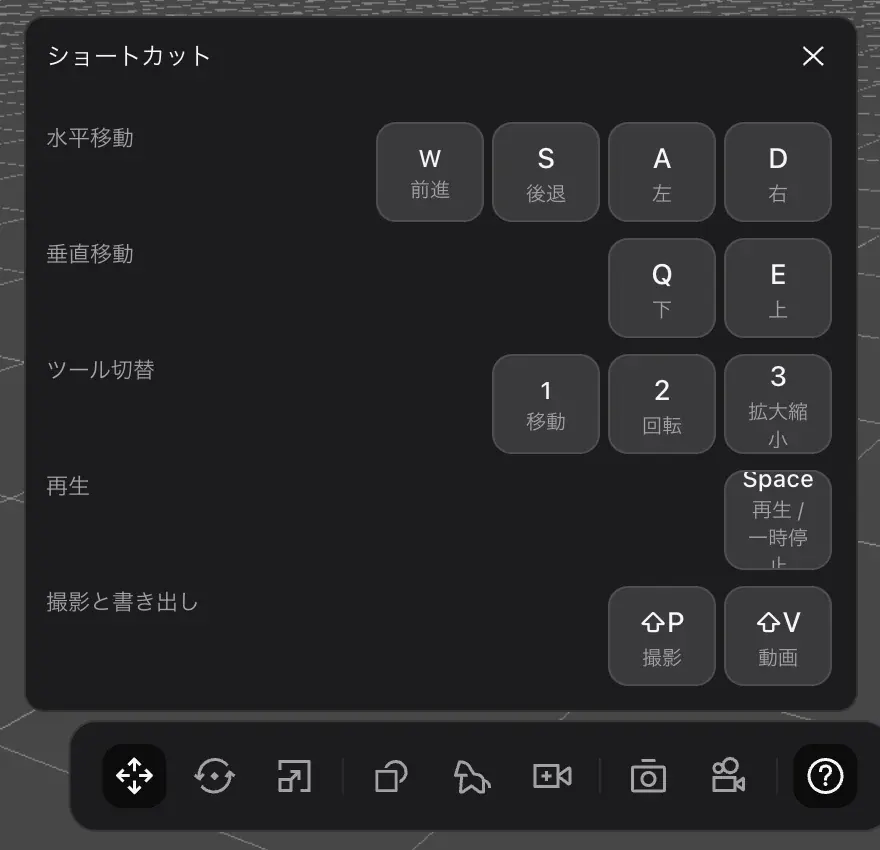
| Category | Action | Key |
|---|---|---|
| Horizontal Move | Forward / Backward | W / S |
| Horizontal Move | Left / Right | A / D |
| Vertical Move | Down / Up | Q / E |
| Tool Switch | Move | 1 |
| Tool Switch | Rotate | 2 |
| Tool Switch | Scale | 3 |
| Playback | Play / Pause | Space |
| Capture & Export | Photo | Shift + P |
| Capture & Export | Video | Shift + V |
S is used only for "Backward". The key to switch to scaling is 3.