Get Started

Multiplayer Collaboration

Team-level visual engineering collaboration: seamless real-time teamwork via multi-tiered permission links, clear computing credit allocation, and ownership security.

Visual storytelling is rarely a solitary endeavor. AZ8 natively supports project-level multiplayer collaboration in real time: share your project link with screenwriters, directors, concept artists, or editors. All participants can track each other's cursors, review storyboards, and run parallel generations on the exact same infinite canvas.


1. Collaboration Invite in Three Steps

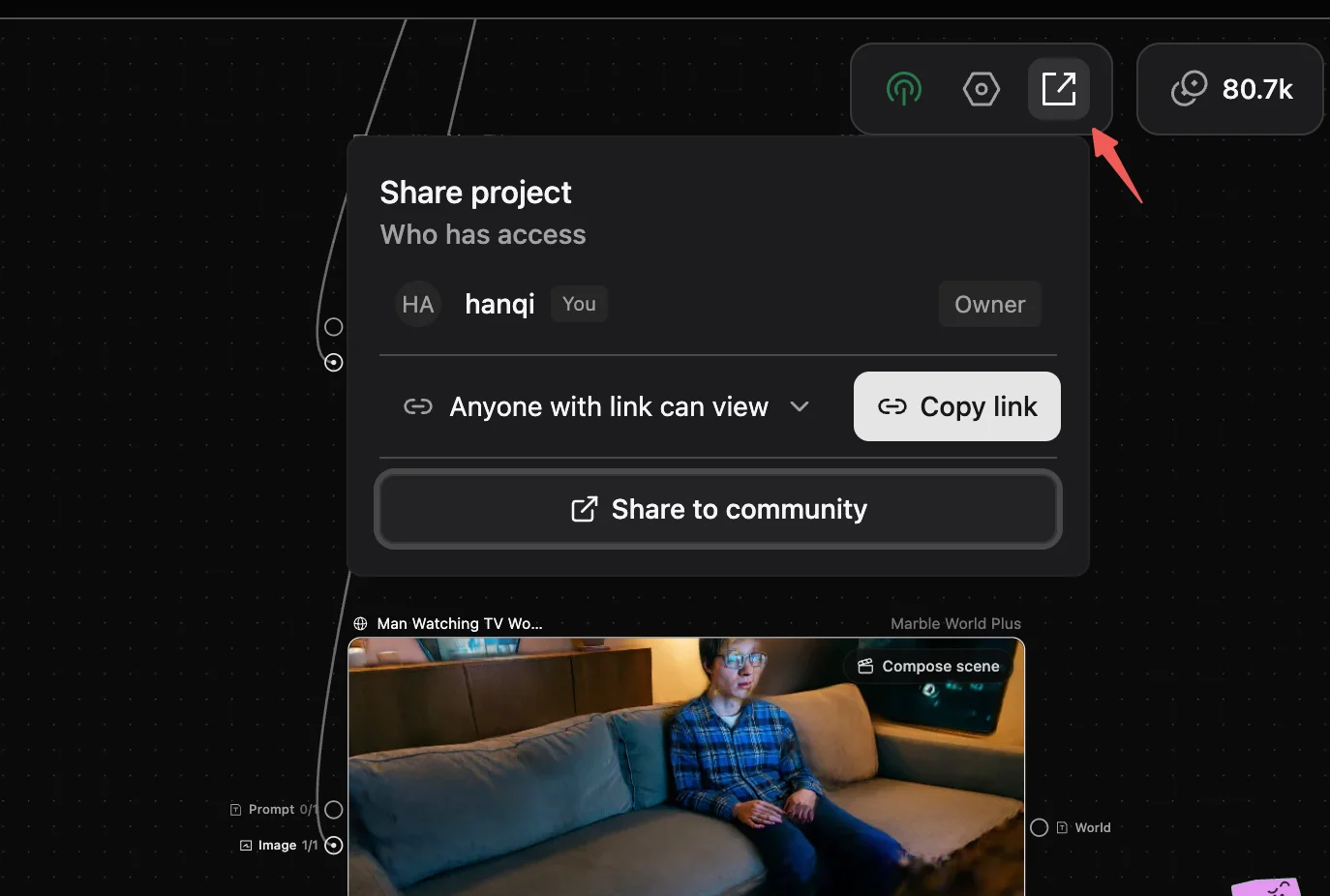
Step 1: Open the Collaboration Panel

Click the Share icon (the infinity symbol ∞) in the top-right corner of the canvas to open the multi-user collaboration and permissions modal.

Open collaboration panel

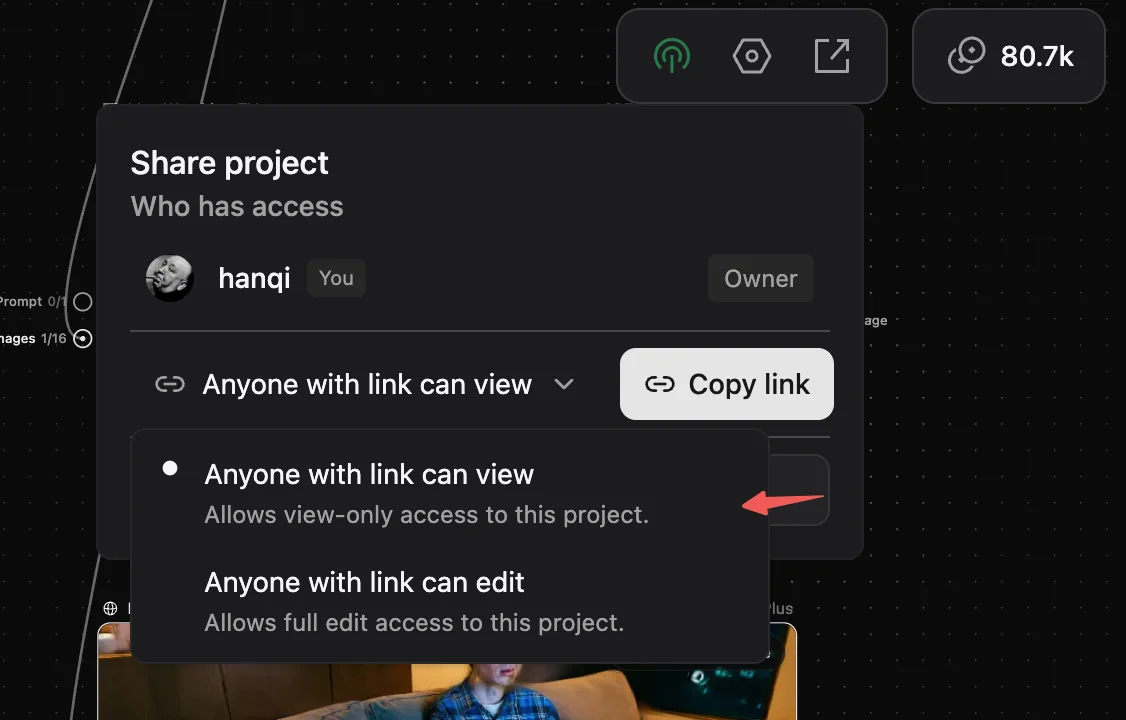
In the Link Permissions dropdown, choose the appropriate access tier:

  • Can View: Allows roaming the canvas, inspecting generated images and videos at full resolution, but prevents editing nodes or consuming credits.
  • Can Edit: Allows creating, moving, and editing nodes, altering prompts, and triggering model runs with full creation access.

Set link permissions

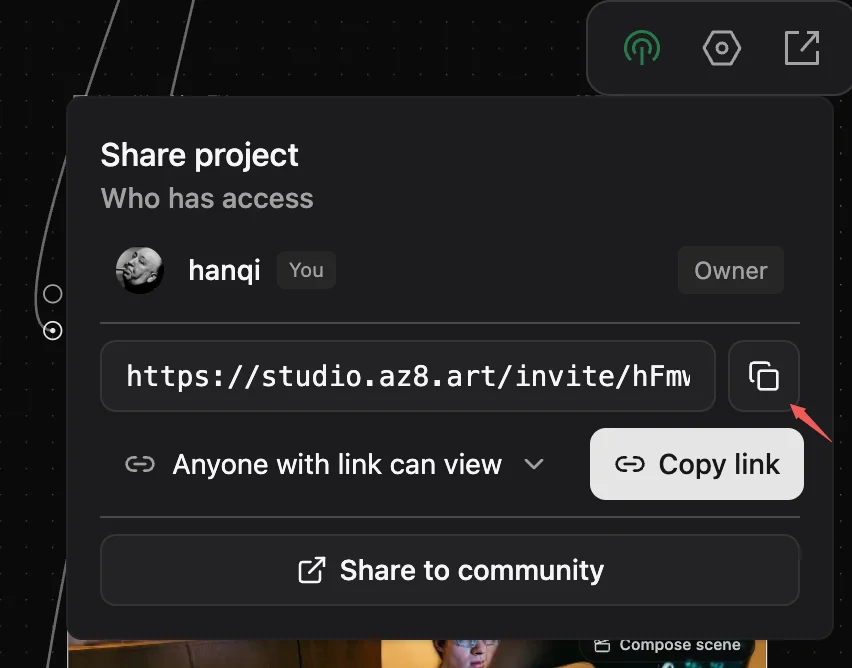
Click Create Link to generate a unique encrypted URL. Click the copy icon to copy it to your clipboard and share it with your teammates.

Create and share link


2. Computing Credits & Security Rules

To ensure clear responsibility and asset security across teams, AZ8 implements strict isolation policies:

Credit Billing Mechanism

RoleCanvas Navigation / Video PlaybackModel Generation / Upscaling
Can View (Viewer)Free (no credits deducted from any member)Not permitted
Can Edit (Editor)FreeDeducts Credits from the collaborator's own account

Note: When team members trigger generations in a shared canvas, credits are deducted from their individual accounts by default. Shared Team Enterprise Credit Pools are coming in a future update.

Permission Security & Revocation

  1. Careful Link Sharing: Anyone with a "Can Edit" link can modify the canvas. Avoid sharing edit links in public channels.
  2. Instant Revocation: The project Owner can downgrade an editor to viewer status or remove them from the project at any time with immediate effect.
  3. Owner Protection: The original project creator maintains permanent ownership (Owner), which cannot be altered or removed by invited collaborators.

On this page