ByteDance image model
Seedream 5.5: transparent output, 100 layers, edits that stay put
Describe the image or bring a reference. Create product photos, edit existing images, and make transparent assets with Seedream 5.5 in AZ8 Studio.
Review your inputs and estimated credits in Studio before generating.
Last updated
What is Seedream 5.5?
Seedream 5.5 is ByteDance's image generation and editing model. Compared with Seedream 5.0 Pro, it outputs transparent backgrounds directly, splits an image into up to 1 base image plus 99 layers, and keeps untouched areas steadier across multiple rounds of editing.
Key takeaways
- Transparent backgrounds: both text-to-image and image-to-image can output PNGs with an alpha channel, from up to 10 reference images at once.
- Layer decomposition: one image becomes up to 1 base image plus 99 transparent layers, each with its position, stacking order and name. Layers of set text also return an approximate font and color.
- Multi-turn editing: name the object and the change, and everything else stays as it was. Useful for building a set of images of the same scene step by step.
Start with an image you want to make
Open an image to see its full prompt, then copy it or bring it into the generator.
Images marked as illustrative samples are for layout preview and were not generated with Seedream 5.5.
What Seedream 5.5 can do
Separate images into layers in one click
Automatically split a complete image into approximately 2 to 100 reusable layers, including backgrounds, individual elements and text.
Precise multi-turn image editing
Specify what to change and what to keep. Review each result before making the next edit. For retouching, relighting and changing a product’s setting.
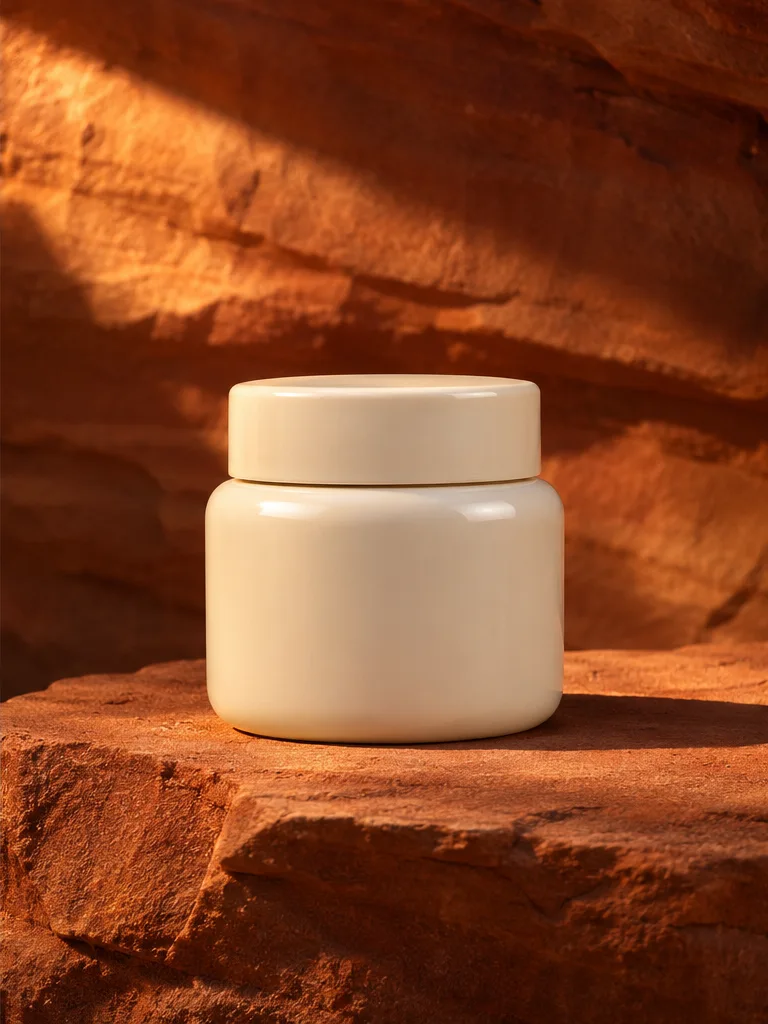
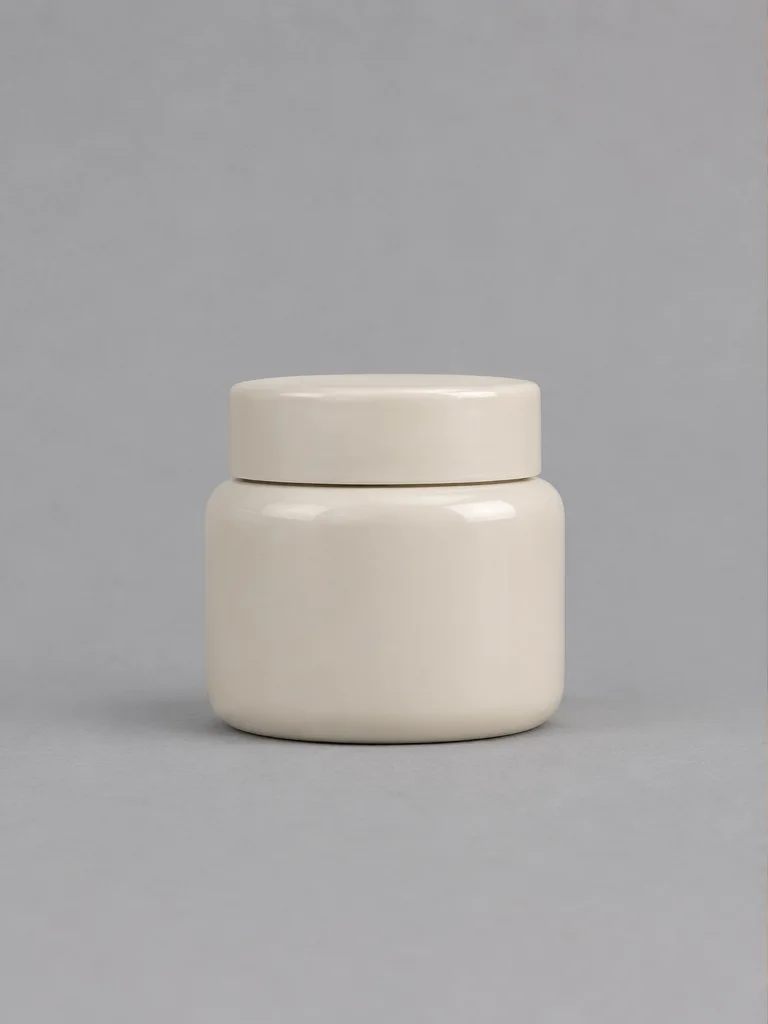 BeforeAfter
Change the setting. Keep the subject.
Drag the slider to compare two illustrative frames. The brief changes the background and lighting while preserving the product.
Prompt
Using the reference photo, replace the gray backdrop with warm sandstone and add directional afternoon light from the upper left. Keep the ivory jar, its lid, silhouette, scale, and camera angle unchanged.
Transparent background generation
In Studio, set the background to Transparent and select PNG to preserve transparency. For stickers, overlays and reusable product cutouts.
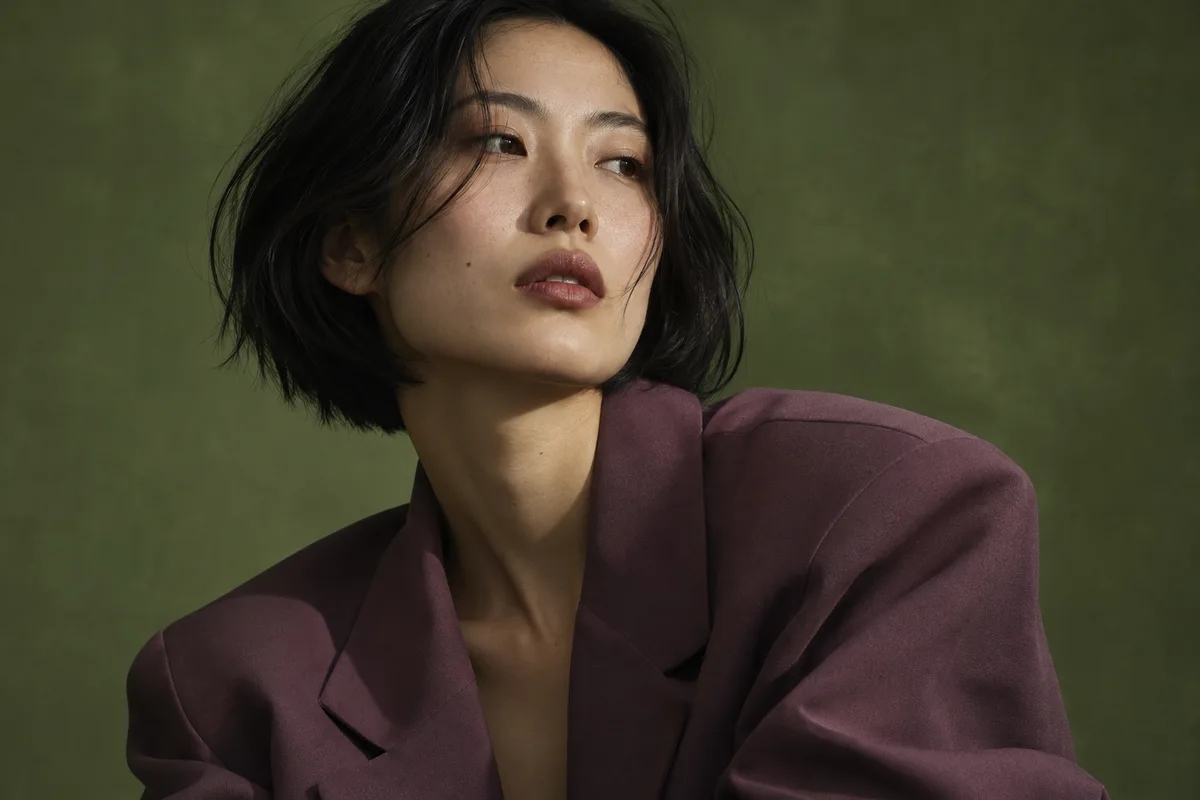 Illustrative sample
Photorealistic image generation
Describe the light, materials and framing. Details such as soft side light or brushed metal help shape the result. For editorial portraits, campaign visuals and product photography.
Prompt
Create an editorial portrait of an adult woman with short black hair and a muted plum jacket. Use soft side lighting, natural skin texture, and a muted green studio backdrop. Frame from the shoulders up.
How to use Seedream 5.5 in AZ8
- 1
Start with a prompt
Choose text to image or image to image. Write a prompt, add reference images for image to image, then click the up arrow.
- 2
Open your draft in Studio
If asked to sign in, Studio opens afterward with the inputs you prepared here.
- 3
Generate, refine and download
Check the settings and credit estimate in Studio, then run the draft. Refine the image or download the finished output.
FAQ
How is Seedream 5.5 different from Seedream 5.0 Pro?
According to ByteDance's comparison, transparent backgrounds now work for text to image too, and input images no longer need an alpha channel. Layer decomposition goes from up to 16 layers to 99 and can read set text. Consistency across multi-turn editing is clearly better.
Is Seedream 5.5 free on AZ8?
Free access depends on your account benefits. Studio shows the estimated credits before you generate.
How do I get a transparent background?
Set the background to Transparent in Studio, or say transparent background, transparent PNG, no background or alpha channel in the prompt, and output PNG. JPEG cannot be transparent.
Can I turn generated images into videos?
Yes. Use the image as a reference or first frame in a supported image-to-video workflow in AZ8 Studio, then edit and export your result.
Can I use the images commercially?
Under the AZ8 Terms of Service, the rights to what you generate on AZ8 belong to you. Commercial use is allowed as long as you follow the law, respect third-party rights, and meet any model conditions shown before generation.
Create your first image with Seedream 5.5
Open a new Studio project with a Seedream 5.5 image node ready for your prompt.