Interface & Basics
Master the essentials of the AZ8 workflow: creating canvas projects, organizing cross-modal assets, managing your account, and understanding the Credits computing system.
Welcome to AZ8. Before diving into infinite canvas visual storytelling and workflow orchestration, familiarize yourself with project management, asset organization, and account credits.
1. Quick Project Creation
AZ8 offers two ways to launch a project, tailored to quick brainstorming or structured project management:
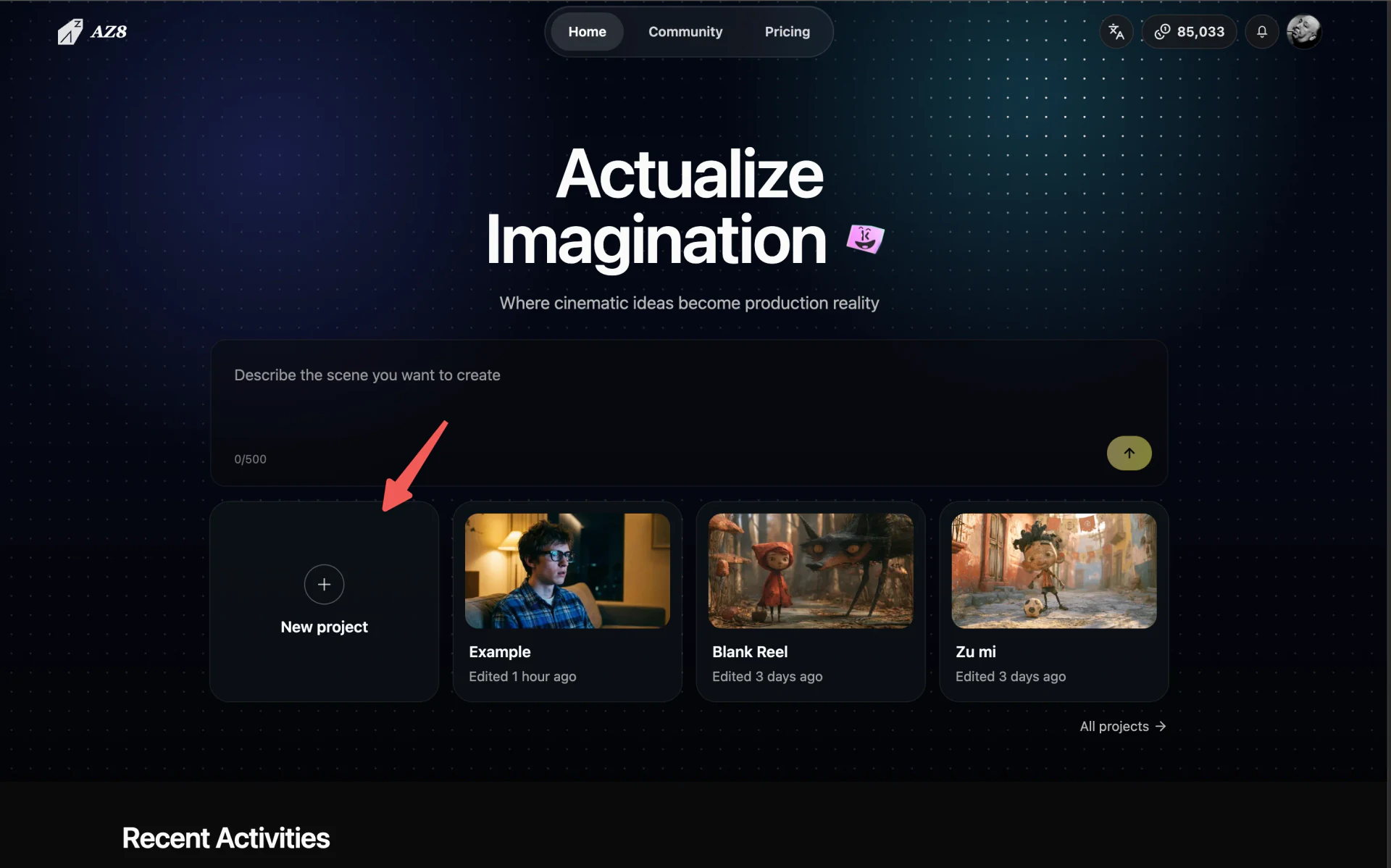
Option A: Direct Launch from Homepage
Visit AZ8.art and click the Create Project button in the center to open a fresh infinite canvas in seconds and immediately begin capturing ideas.
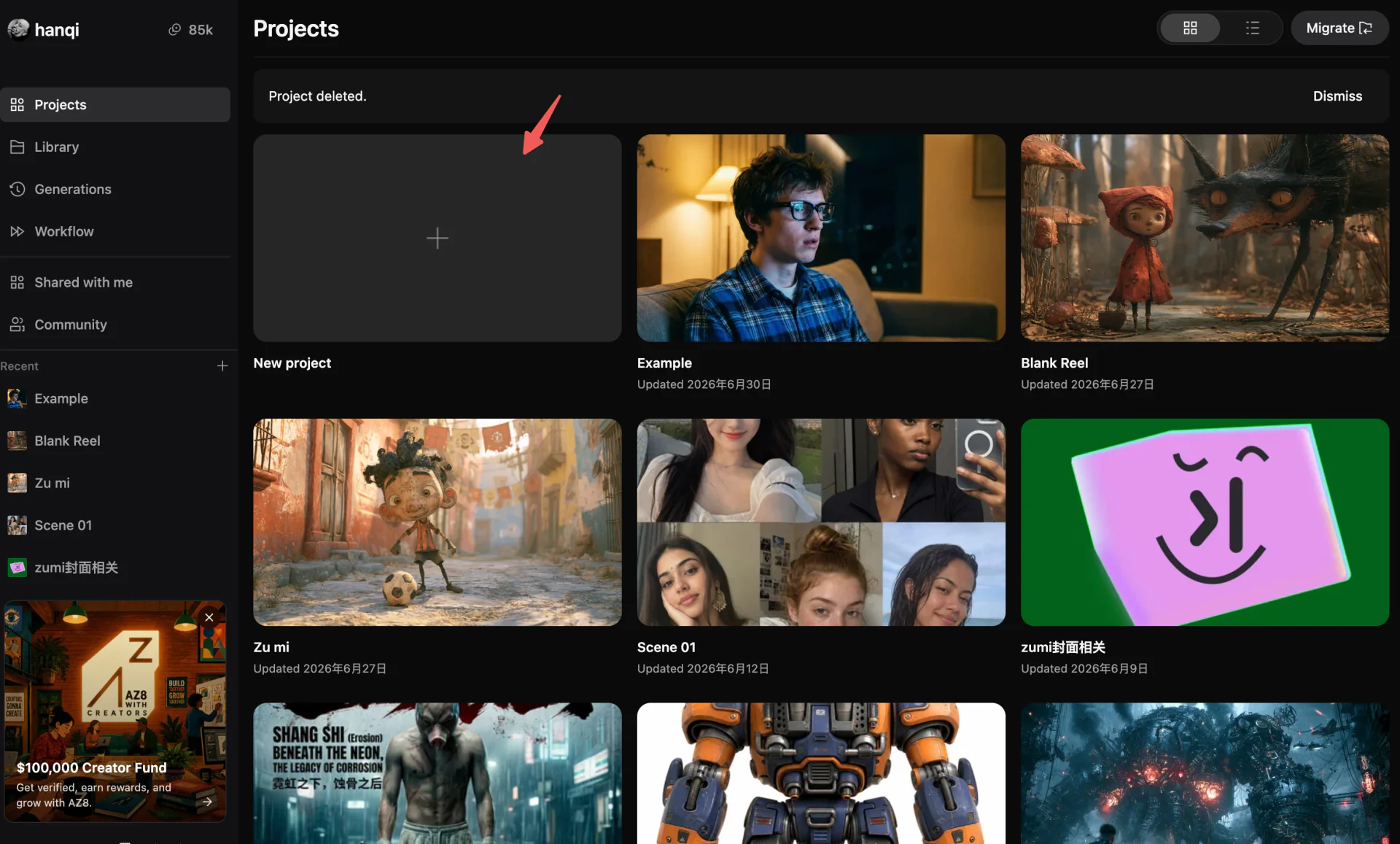
Option B: Project Management Center
In the project list, click the New Project button in the top-right corner. Here you can review past production files, archive completed projects, or duplicate an existing project as a template.
2. Asset Organization & Library
In complex visual pipelines, generated artifacts should not be one-off outputs. AZ8 provides a seamless asset management workflow to save high-quality concept art, prompt setups, and keyframes for cross-project reuse:
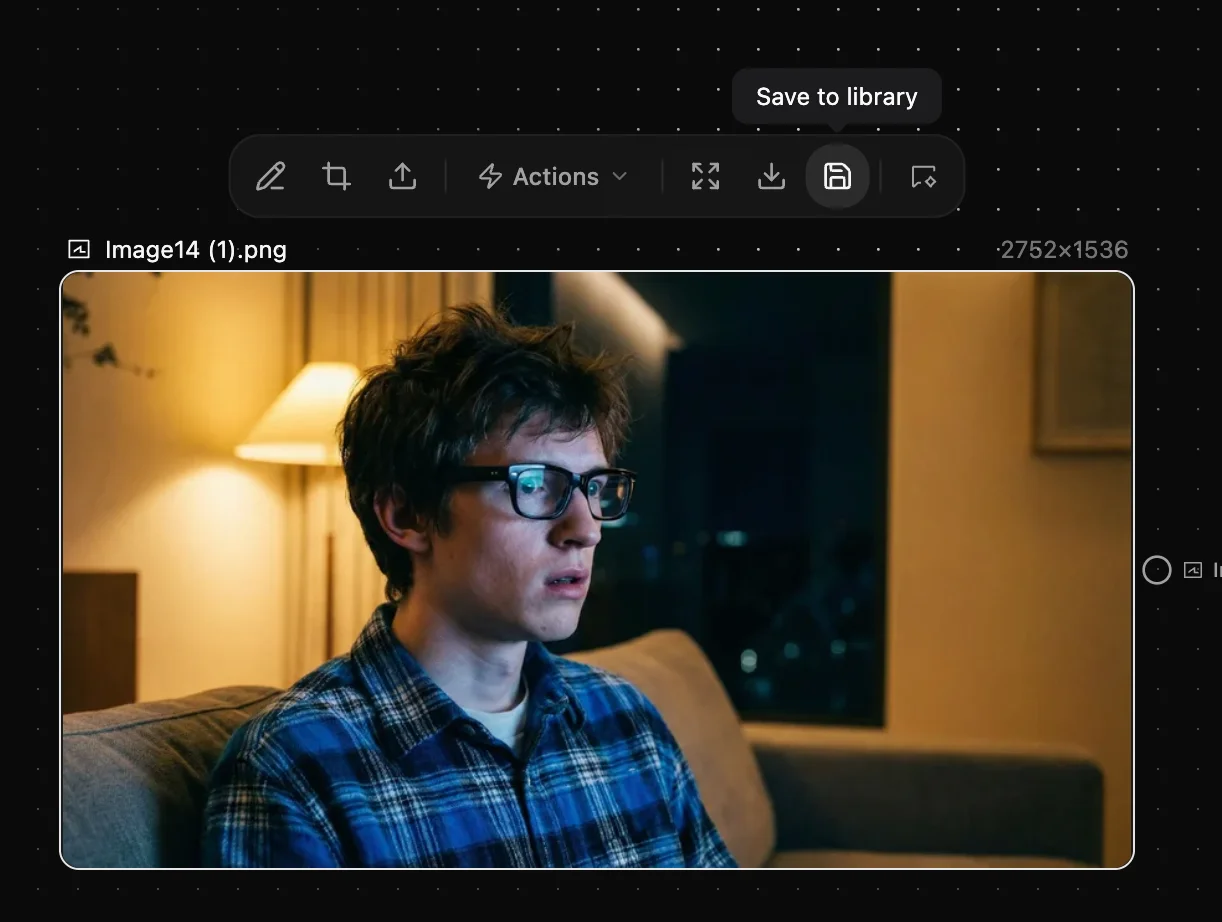
Quick Save for Single Nodes
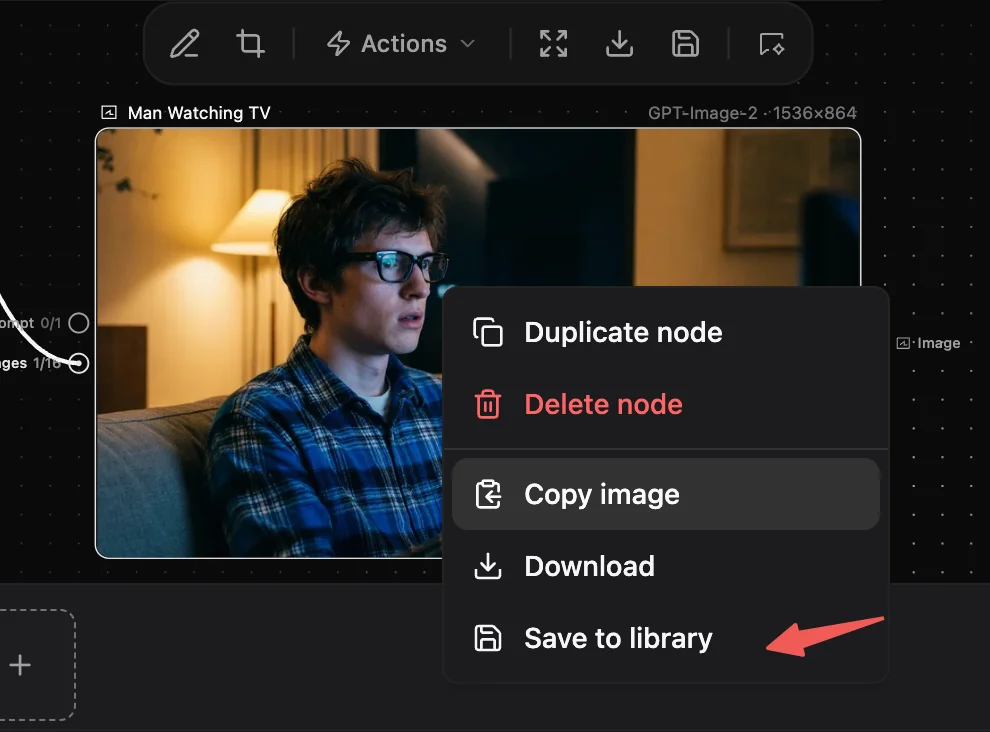
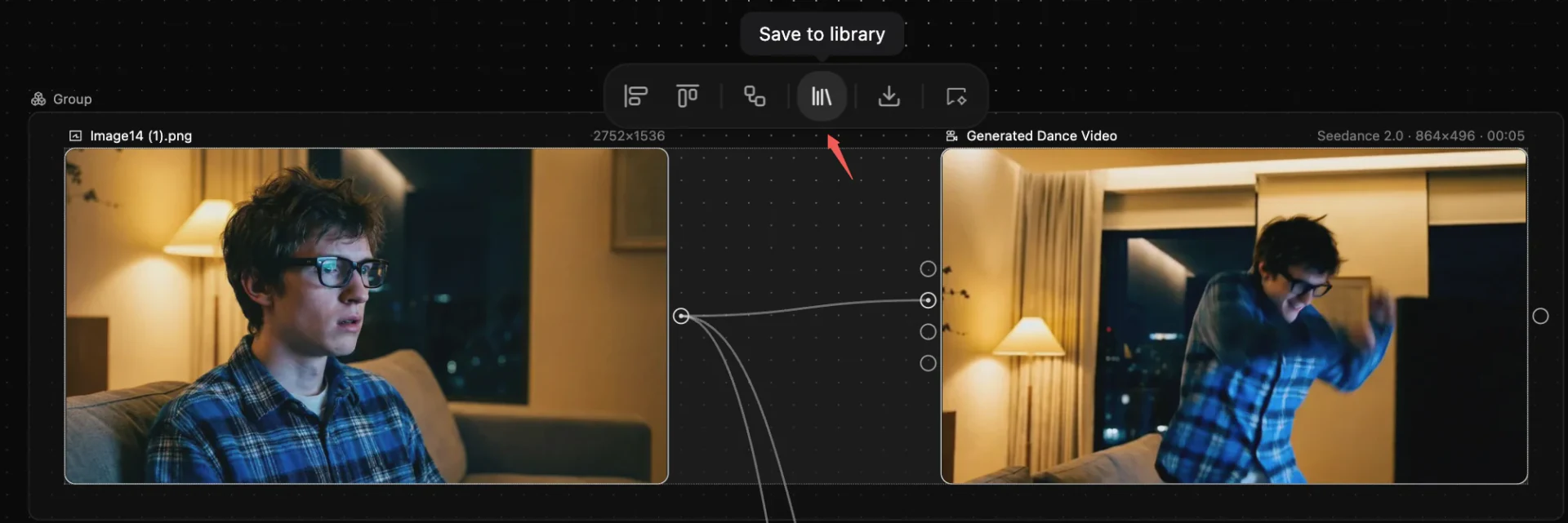
Select any generated node on the canvas (such as a high-fidelity image or video preview), click the Save icon on its floating toolbar, or right-click to open the context menu and select Save to Assets.
Method A: Floating Action Bar
Method B: Right-Click Context Menu
Multi-Modal Group Asset Archiving
Beyond individual nodes, AZ8 supports grouped asset archiving: select an entire pipeline segment containing prompts, concept images, and derived video clips, and save them as a composite asset—preserving upstream prompts and generation parameters intact.
Asset Library Recall & Reuse
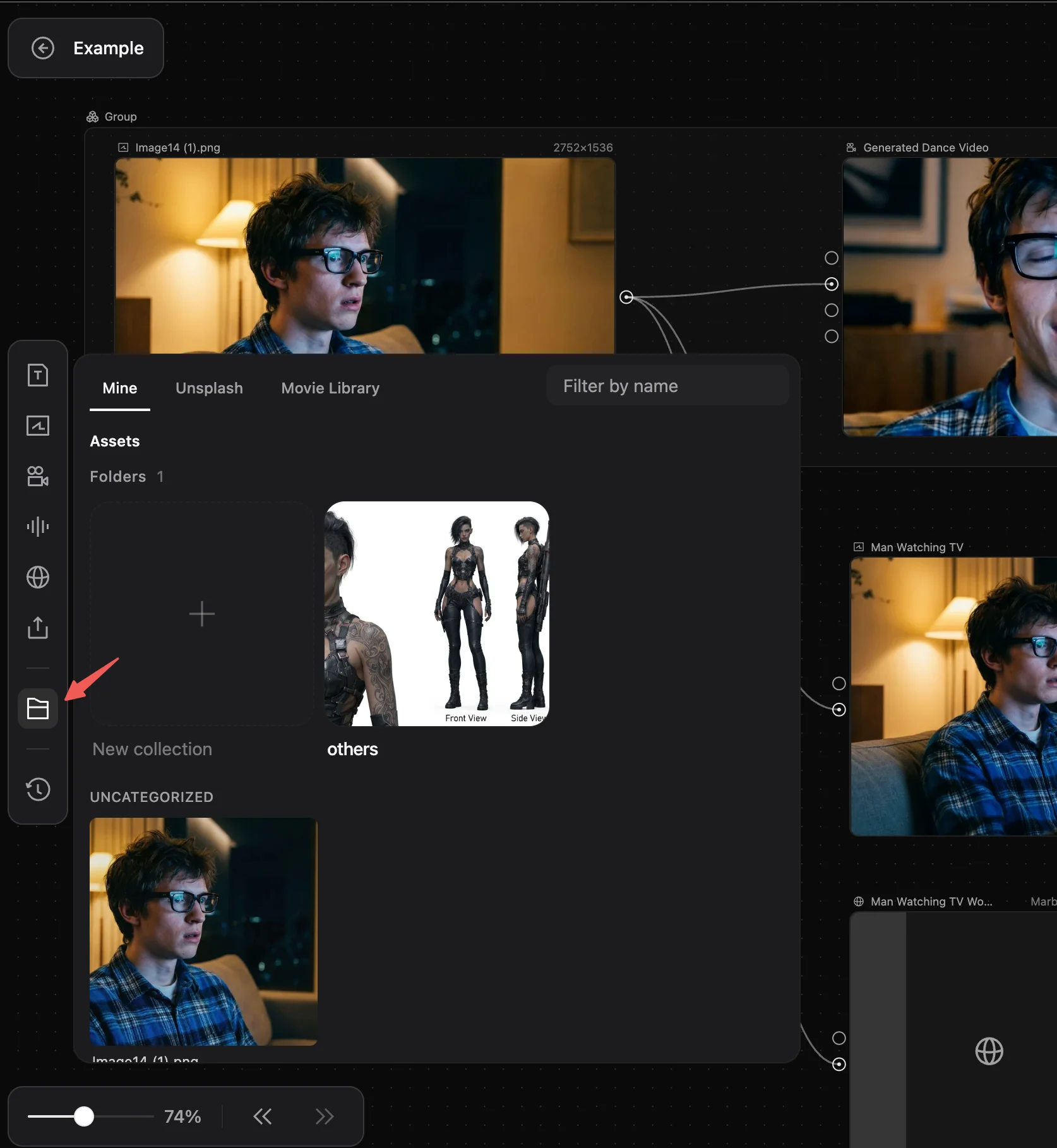
Click the Asset Library icon on the left toolbar to open your archived assets. Filter by media type, and click or drag any asset directly onto the canvas for frictionless remixing and iteration.
3. Account Management & Credits
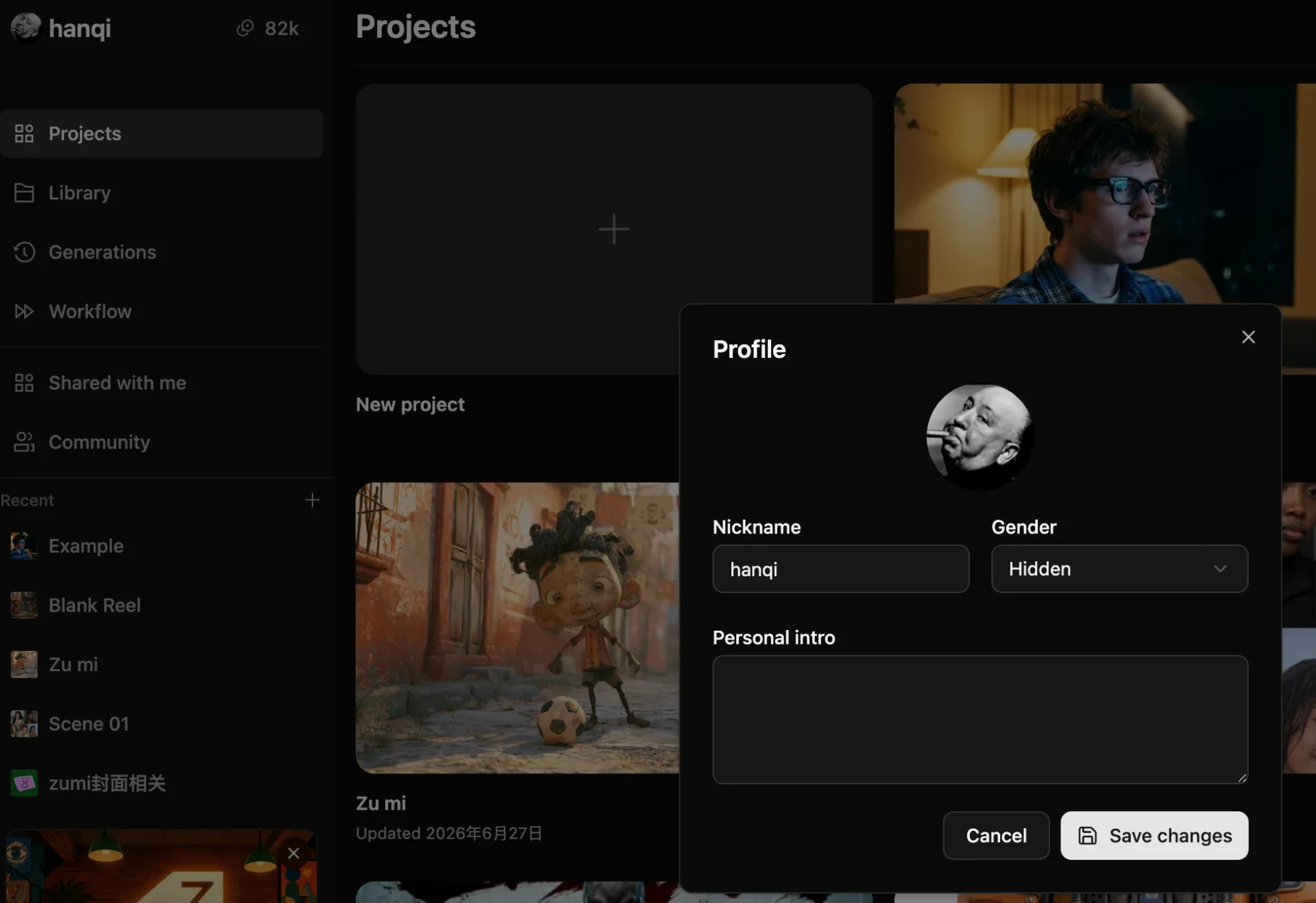
Account Profile & Preferences
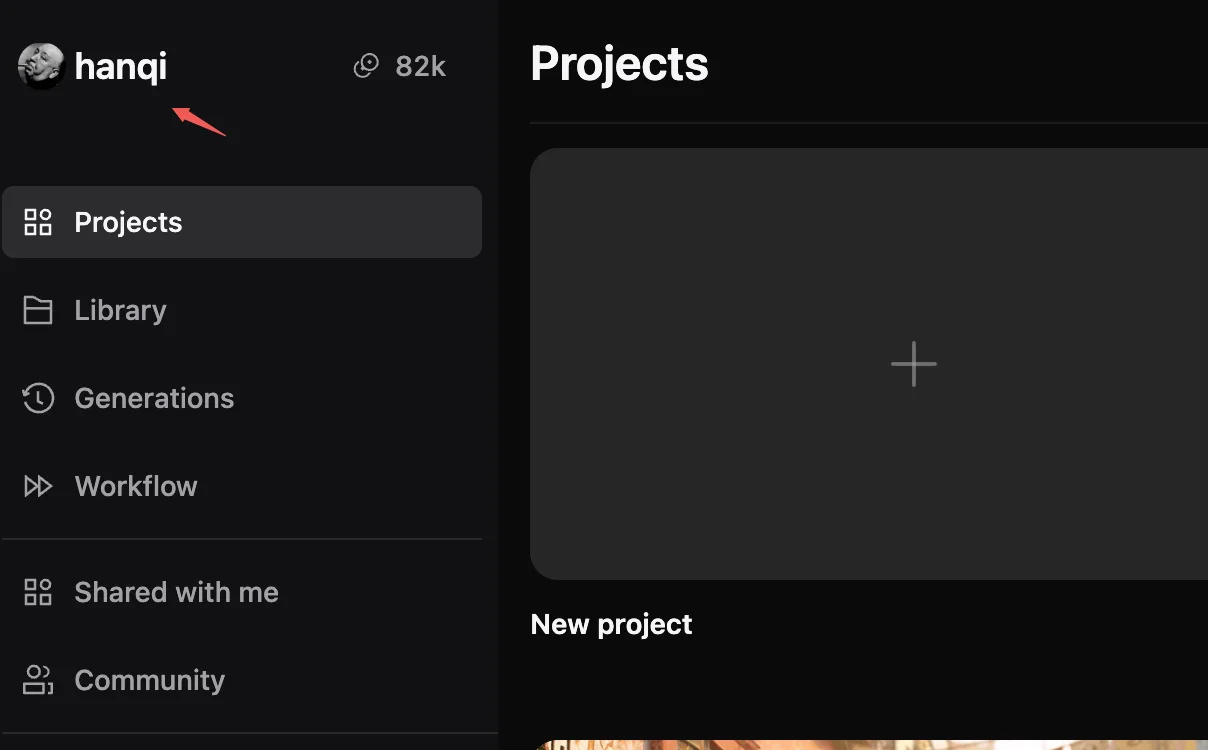
Your avatar is pinned to the top-left of the canvas. Click it to open the profile dropdown to inspect your logged-in account, linked channels, and workspace preferences.
Top-left Account Entry
Preferences & Settings Panel
Computing Credits System
AZ8 utilizes a flexible Credits system where model executions and video renders are billed according to actual usage:
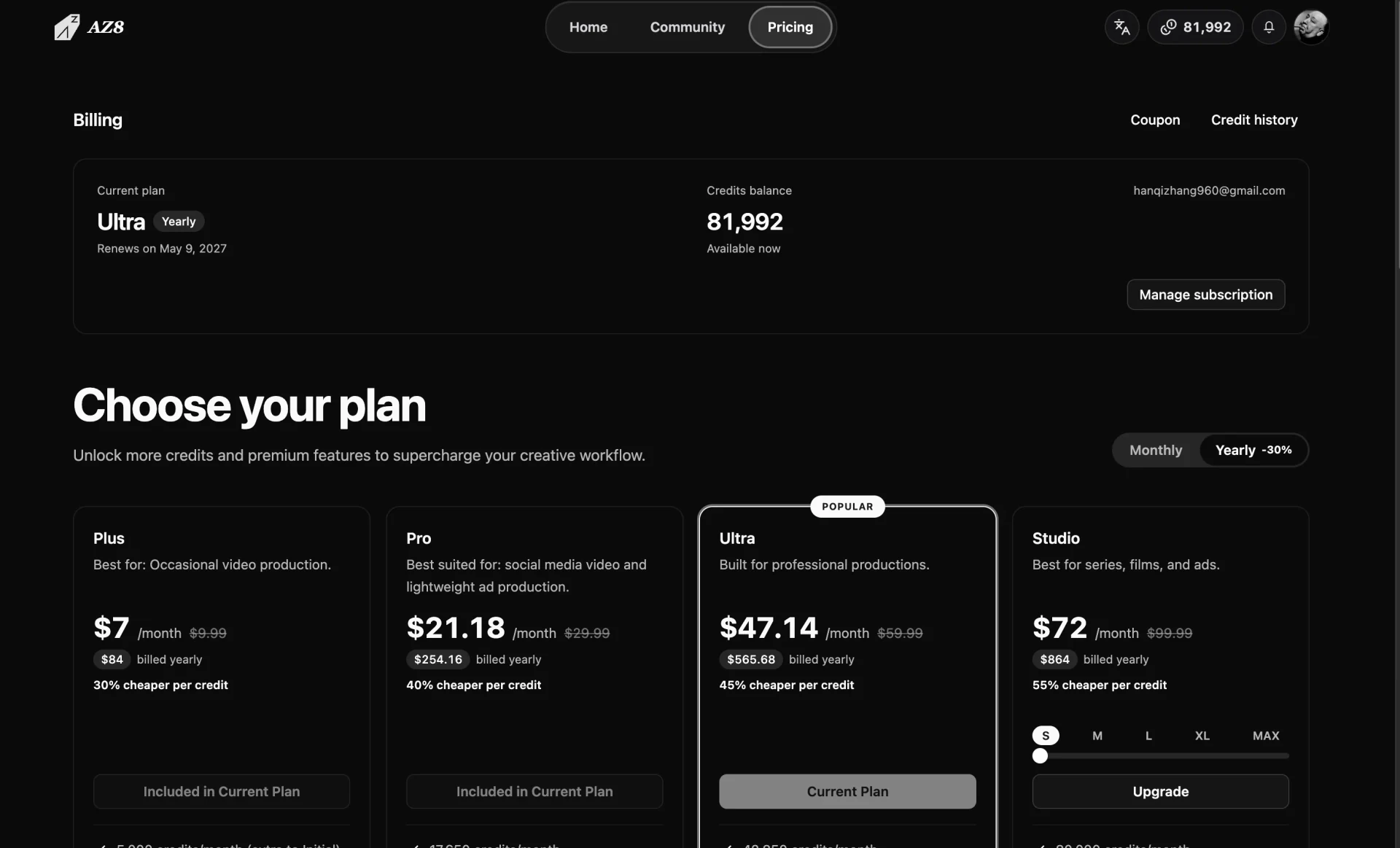
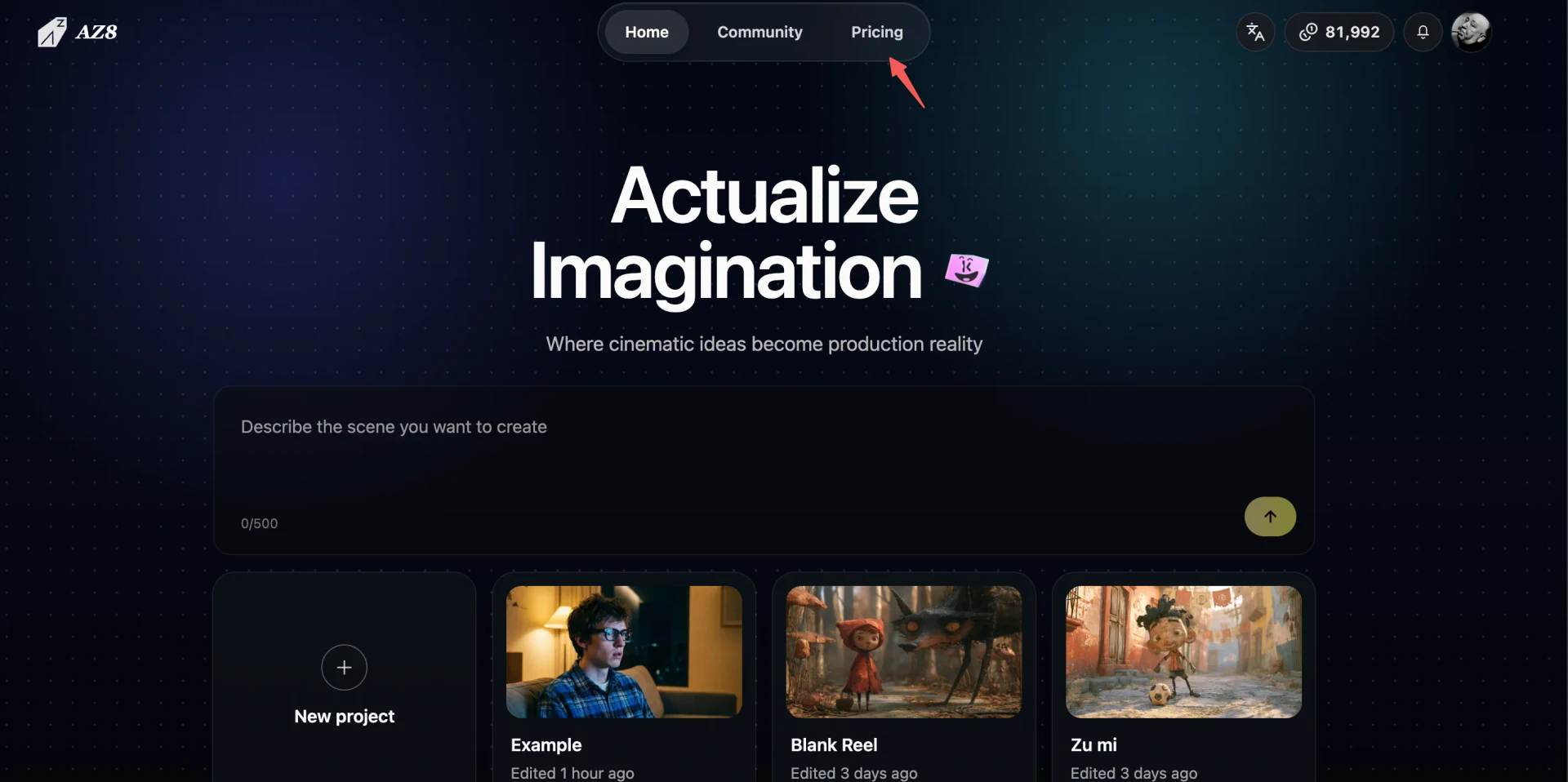
- Access the Pricing link in the navigation header to top up one-time credit packs or subscribe to Pro plans for high-resolution upscaling and increased concurrency.
- Account balances and transaction records sync in real time, accessible in your billing dashboard.
Pricing Link in Top Bar
Official Plans & Subscriptions