Workflows
How to check the credit cost before generating, approve several generations at once, and follow running tasks.
On the canvas, you work by connecting nodes, from design art to storyboards and from storyboards to video. This page explains 3 mechanisms that keep that flow safe. They are the credit check before generation, the confirmation card for batch generations you ask Zumi for, and the list of running tasks.
Before you start, note that generation requires credits. See Plans and credits for your balance and plan.
Check the credit cost before generating
Each node's "Submit" button shows the credits this generation will use. The number updates immediately when you change the model, resolution, duration, generation count, and so on.

Select a node and choose the settings
For example, select V02, set the mode to "Image to video", and set the model to "Seedance 2.5". See Video generation for how to set them.
Check the number on "Submit"
If the number is higher than you expected, lower the resolution or duration before you submit. If you only want to check the motion, a good rule of thumb is to try "Seedance 2.5 Draft" first.
Click "Submit"
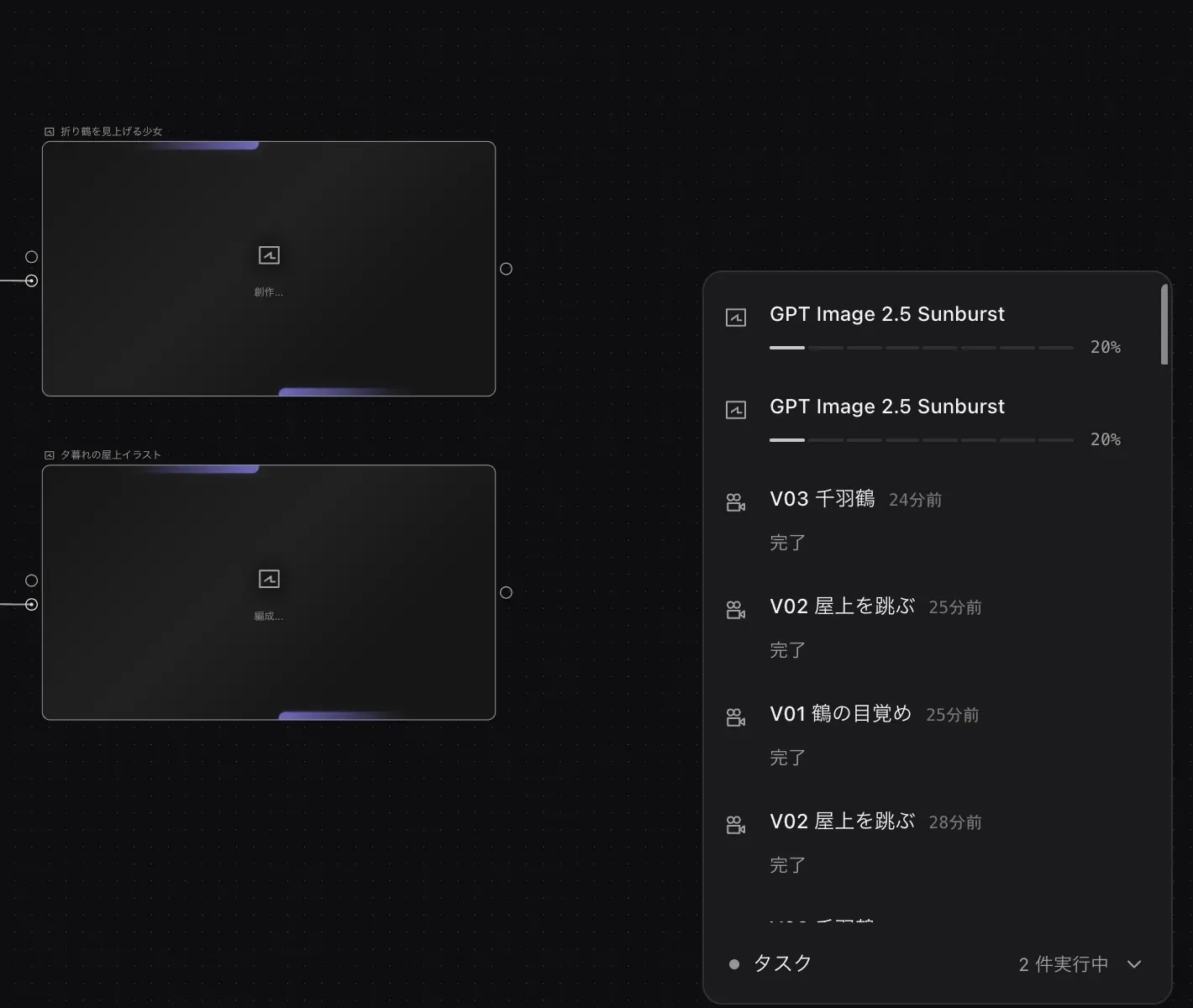
Generation starts, and its progress appears under "Tasks" at the bottom right.
Confirm a batch generation you asked Zumi for
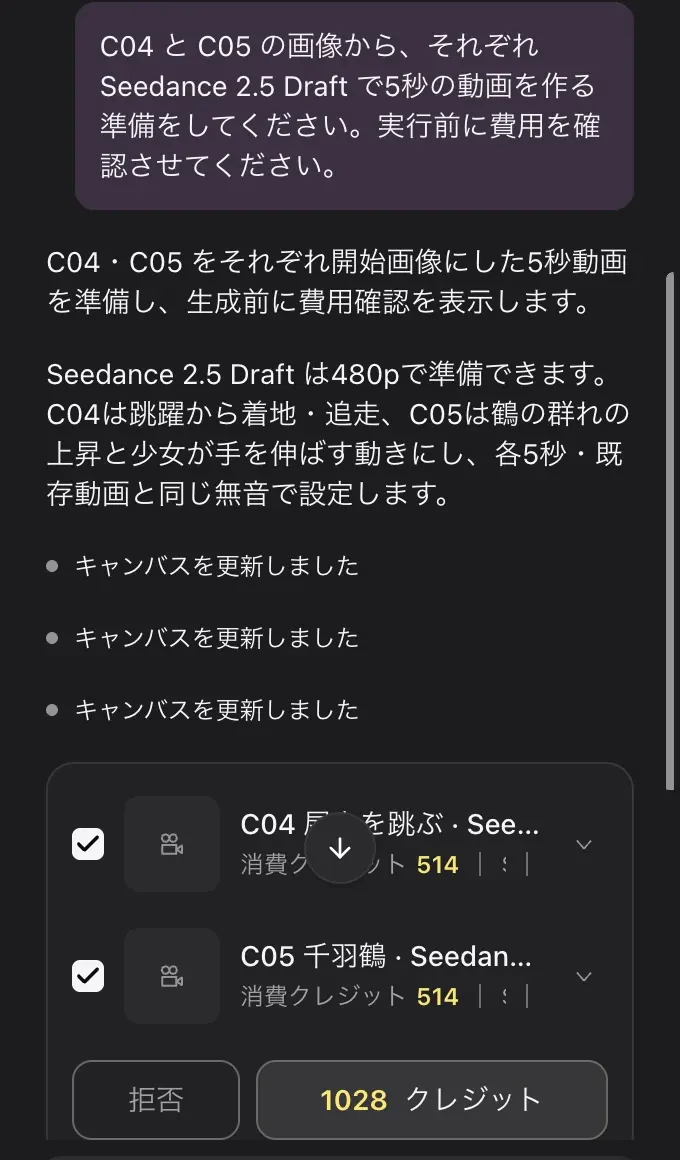
When you ask Zumi for several generations at once, a cost confirmation card appears in the conversation. No credits are used until you approve on this card.
Ask Zumi
For example, send "Prepare videos from C04 and C05 with Seedance 2.5 Draft". See Working with Zumi for how to use Zumi.
Check the card
The card has one row per generation, with a checkbox, the node name and model (for example "C04 屋上を跳ぶ · Seedance 2.5 Draft", where C04 屋上を跳ぶ is "C04 Leaping across the rooftop"), and "Credits used".
Approve or reject
Click the total credits button at the bottom of the card (for example "1028 credits") to start generating. To cancel, click "Reject". The card changes to "Rejected", and the draft nodes Zumi prepared stay on the canvas.
If Zumi's approval mode is set to "Automatic approval", actions that need approval run without confirmation, and the related credits are used automatically.
Check running tasks
"Tasks" at the bottom right of the canvas shows how many tasks are running ("N running") and how many failed ("N failed"). Click it to see the progress and time left for each generation (for example "Remaining 1m 24s"). Failed tasks show "Generation failed".
Organize your nodes
Grouping related nodes makes the flow easier to follow.
- Hold ⌘ and click nodes to select several, then press ⌘G to group them. To ungroup, press ⌘⌫.
- To use the image from a previous node in the next generation, type
@in the prompt and choose it from "Related resources". See Image generation for details.
Multi-selection and group actions are covered in Canvas basics.