Working with Zumi
How to ask Zumi, the AI assistant on the right side of the canvas, to talk through shots and prepare generations.
Zumi is an AI assistant that works alongside you while looking at what is on your canvas. You can ask it to summarize the flow of your shots, find the weakest shots, or prepare generations for several nodes. Questions and requests to Zumi also use credits.
Before you start: You use Zumi on a project's canvas. If you are starting fresh, create a project with Your first video.
Open Zumi
When you open a project, the Zumi panel opens automatically on the right. At first it shows "Zumi says hello", and you can also start from a template under "Quick start with Skill templates" below it.
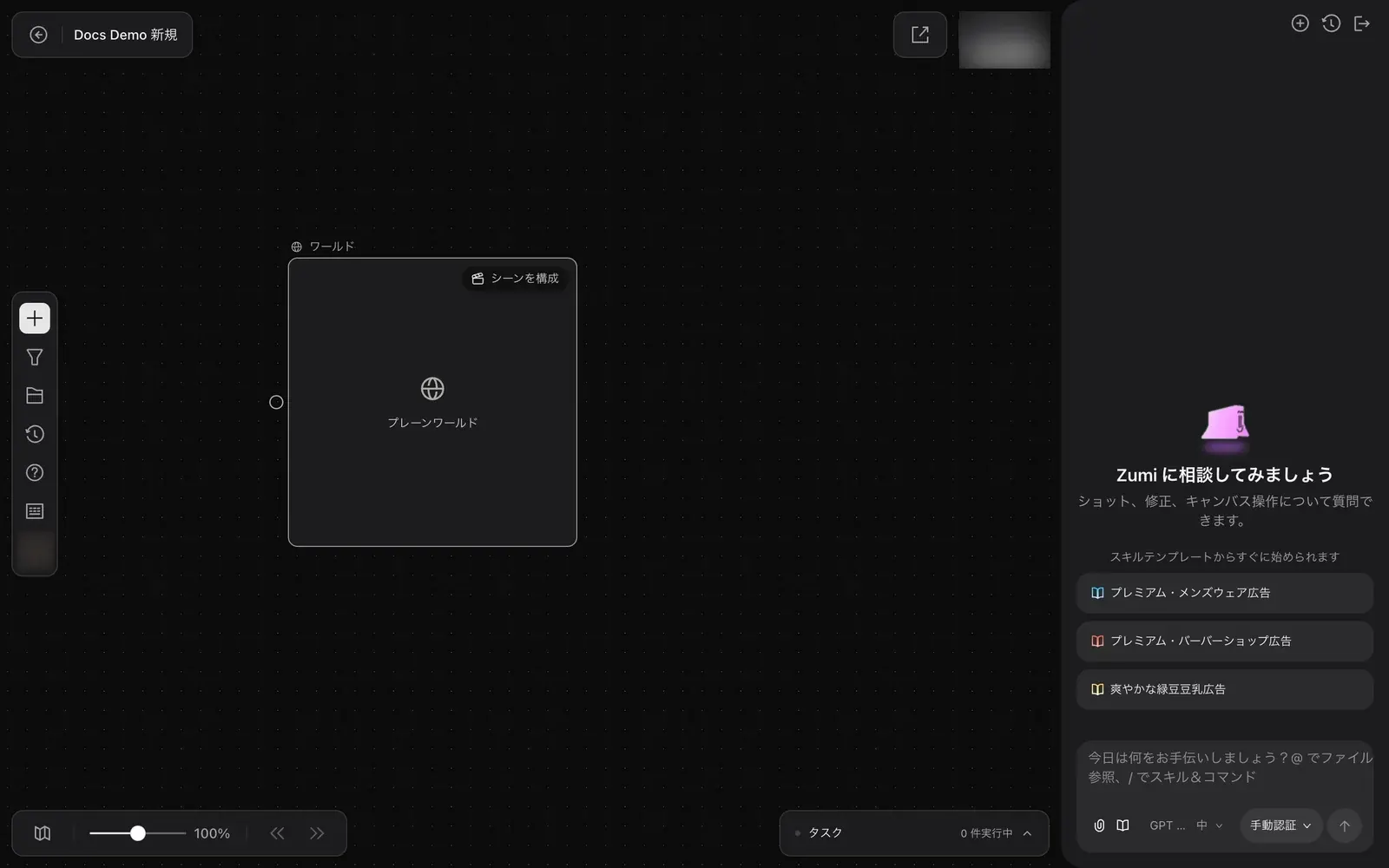
The buttons at the top right of the panel are:
- "New conversation". Starts a new conversation.
- "Conversation history". Opens past conversations.
- "Close agent panel". Closes the panel. While it is closed, a small Zumi walks around on the canvas.
Ask Zumi
Write your question
Write a question or request in the input field and send it. In the input field, use @ to reference files and / to call skills and commands.
If you select nodes on the canvas before writing, the selected nodes are attached to the input field as references. This lets you ask about a specific target, such as "Which of these 3 has the weakest motion?".
Read the answer
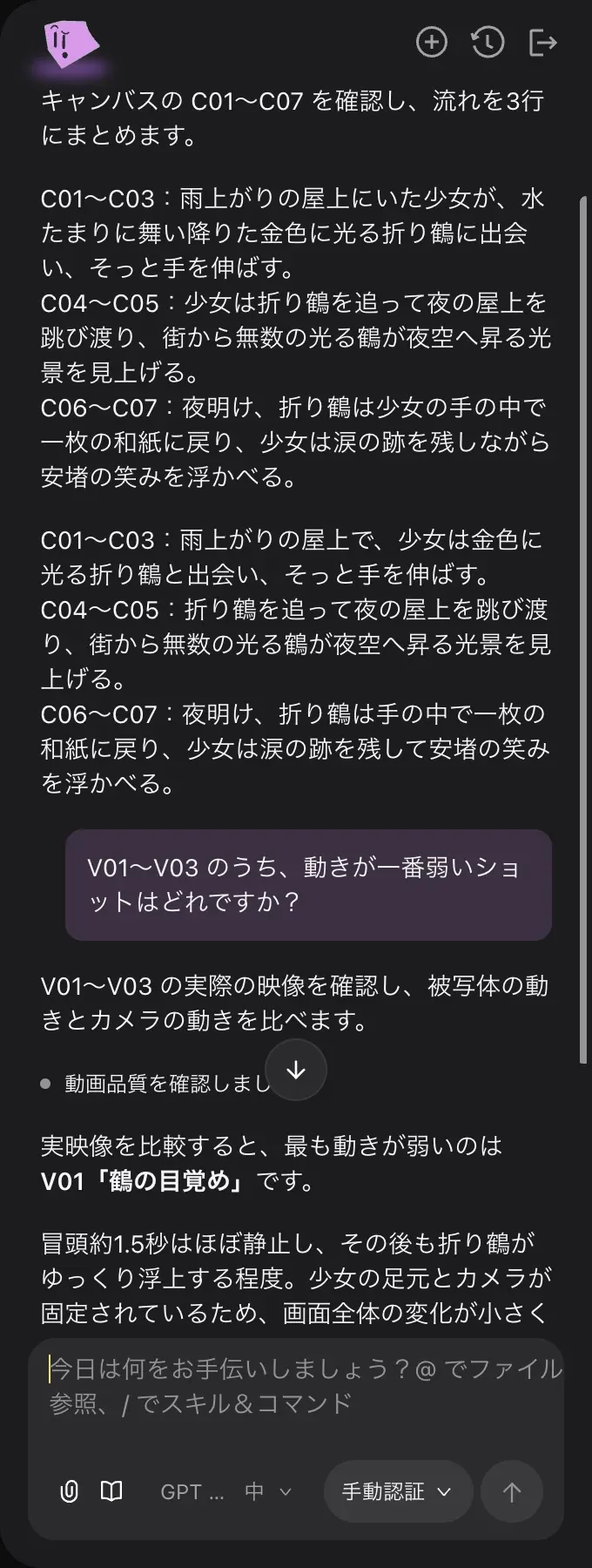
Zumi checks the nodes on the canvas when it needs to before answering. In the example below, Zumi first summarized the flow of C01–C07 in 3 lines, then was asked which of V01–V03 has the weakest motion. Zumi actually checked the videos and answered that the opening of V01 "鶴の目覚め" (The crane awakens) is almost still.
Hand off generation
If you ask something like "Prepare videos from C04 and C05 with Seedance 2.5 Draft", Zumi prepares the nodes and shows a confirmation card in the conversation. The card lists the credit cost of each generation. Click the total credits button to start generating, or click "Reject" to skip it. See Workflows for details.
Send another message while Zumi is answering
You can send messages while Zumi is still answering. Messages you send go into "Queued Messages" and are sent automatically in order once the current answer finishes.
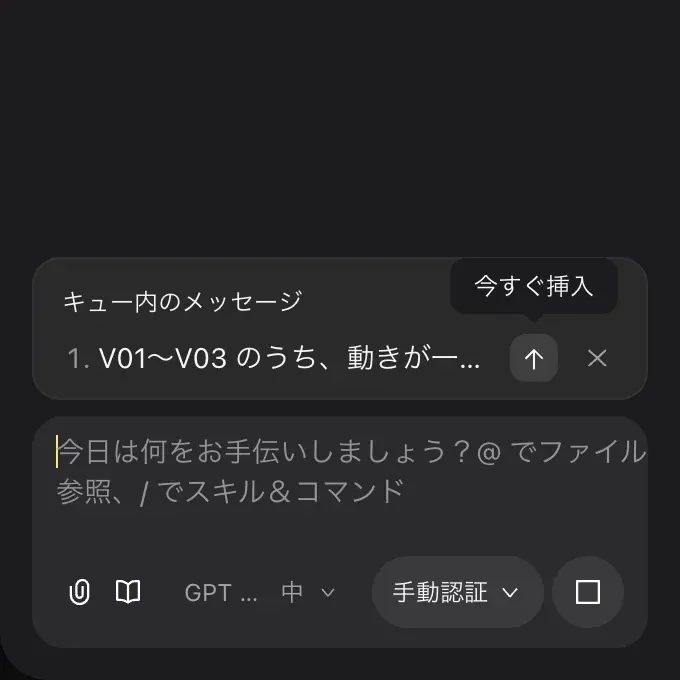
- ↑ ("Send now"). Passes this message along right away, without waiting for the current answer.
- × ("Cancel queued message"). Cancels this message without sending it.
Choose how approvals work
Use the approval button below the input field (initially labeled "Manual authorization") to choose how Zumi handles actions such as those that use credits.
| Option | Behavior |
|---|---|
| "Manual approval" | Asks for confirmation before running any action that needs approval. |
| "Automatic approval" | Automatically approves all approval requests in this session. The related credits are also used automatically. |
Until you are used to Zumi, leaving it on "Manual approval" helps prevent unintended credit use.
Model and reasoning level
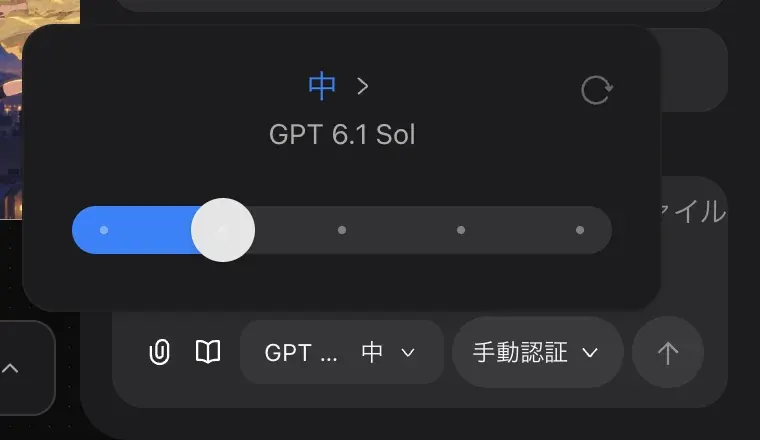
Zumi's model is set by your plan, and you cannot choose it yourself. The button below the input field shows the current model (for example "GPT 6.1 Sol") and the reasoning level. Open the button to change the reasoning level with a 5-step slider.
Zumi and credits
Conversations with Zumi also use credits. You can see how much was used under "Agent usage" in "Project info", which you open from the avatar in the left toolbar. In Docs Demo, 3 messages used 205 credits (about 205k tokens). The amount depends on what you ask and how many nodes Zumi checks. See Plans and credits for details.