Assets and library
How to save the results you like to your library, and find and organize them in the library on the canvas or on the home page.
The library is where you keep materials you use again and again, such as character designs and style reference images. For example, if you save Docs Demo's "KV スタイル基準" (KV style reference), you can find it in the library later.
Save a node to the library
Open "More actions"
Select the node you want to save (for example "KV スタイル基準") and click "More actions" (…) in the node's toolbar. Right-clicking the node opens the same menu.
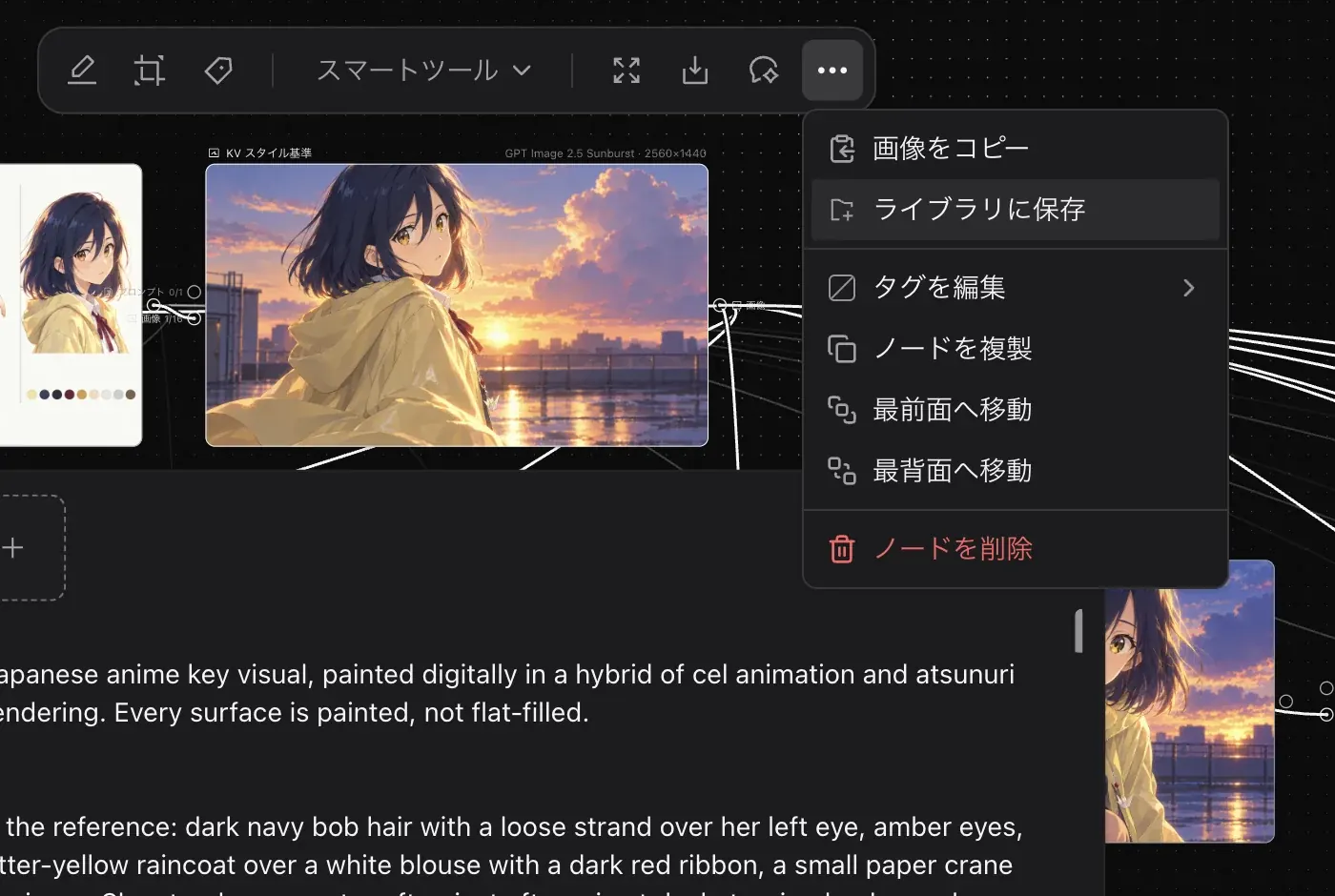
Choose a folder
The folder picker opens. Search with "Search folders…" or choose "Uncategorized" under "Defaults". After saving, you see a notification such as "Saved to Uncategorized.".
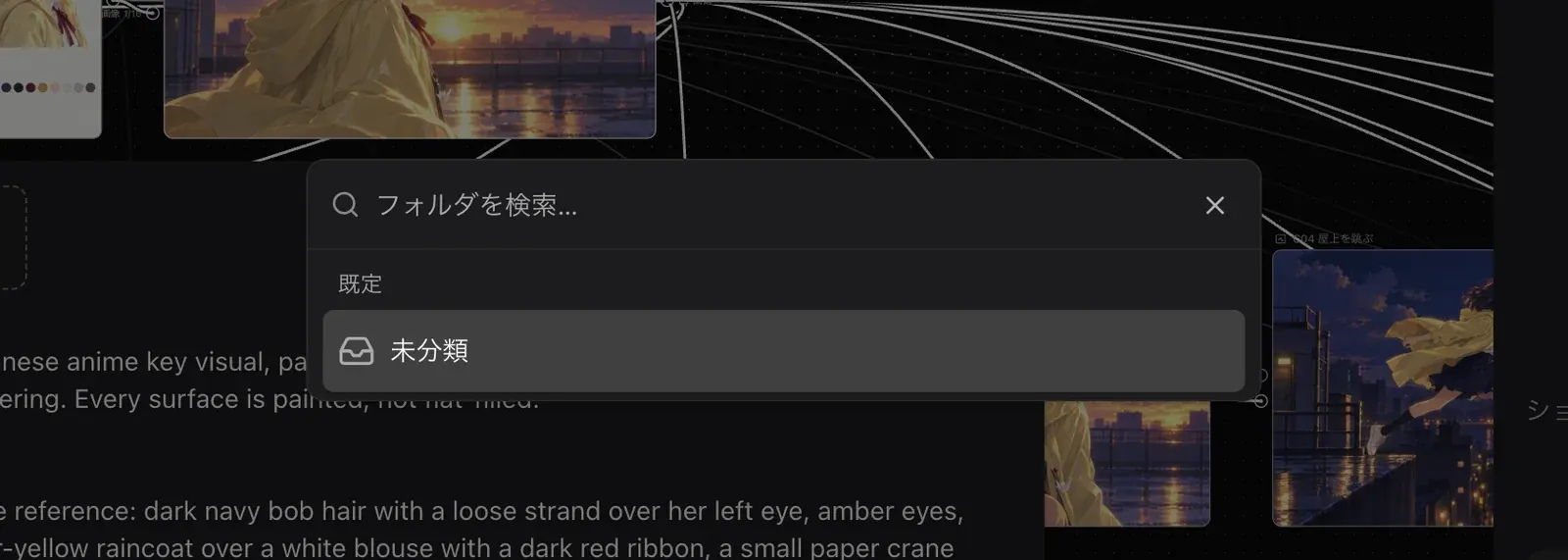
To save several nodes at once, hold ⌘ and click to select them, then click "Save to library" in the multi-selection toolbar.
Open the library on the canvas
Click "Library" in the toolbar on the left of the canvas to open the library panel.
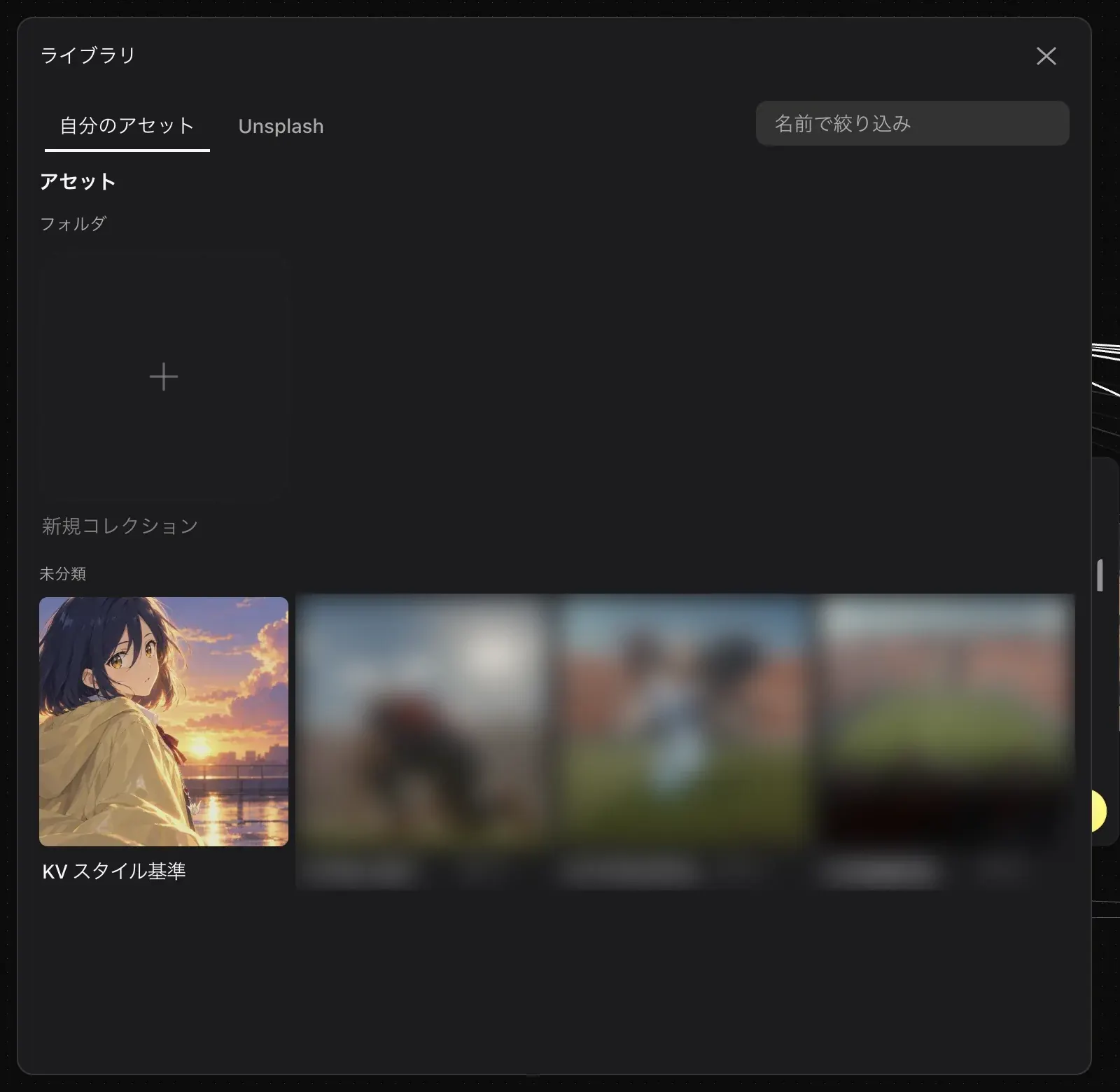
- The tabs are "Mine" and "Unsplash".
- Use "Filter by name" to find materials by name.
- Materials are shown under "Assets", "Folders", and "Uncategorized". Use "New collection" to create a folder.
Organize in the library on the home page
On the studio.az8.art home page, open "Library" in the left sidebar to see your whole library on one page. Use "Move to…" to move materials to another folder.
Related pages. See Canvas basics for the node menu, and Image generation for how to generate with an image as a reference.