Video editing
How to lay out generated video and audio on a timeline and compose them into one MP4.
With a "Video editing" node, you can lay out the video clips and BGM on your canvas on a timeline and compose them into one video. You do not need to move to other editing software to export. This page uses the example of making a rough cut of about 15 seconds from Docs Demo's V01–V03 and "BGM 紙鶴のテーマ" (BGM Paper crane theme).
Before you start, prepare the video and audio nodes you will use on the canvas. See Video generation and Music and audio for how to make them.
Create a video editing node
There are 2 ways in.
- Select materials first. Hold ⌘ and click V01, V02, V03, and BGM 紙鶴のテーマ in order, then click "Video editing" in the multi-selection toolbar. A video editing node is created with the materials connected, and the editor opens.
- Start from an empty node. Choose "Video editing" from "Add node". A video editing node with no materials is created.
After you close the editor, double-click the video editing node on the canvas to open it again.
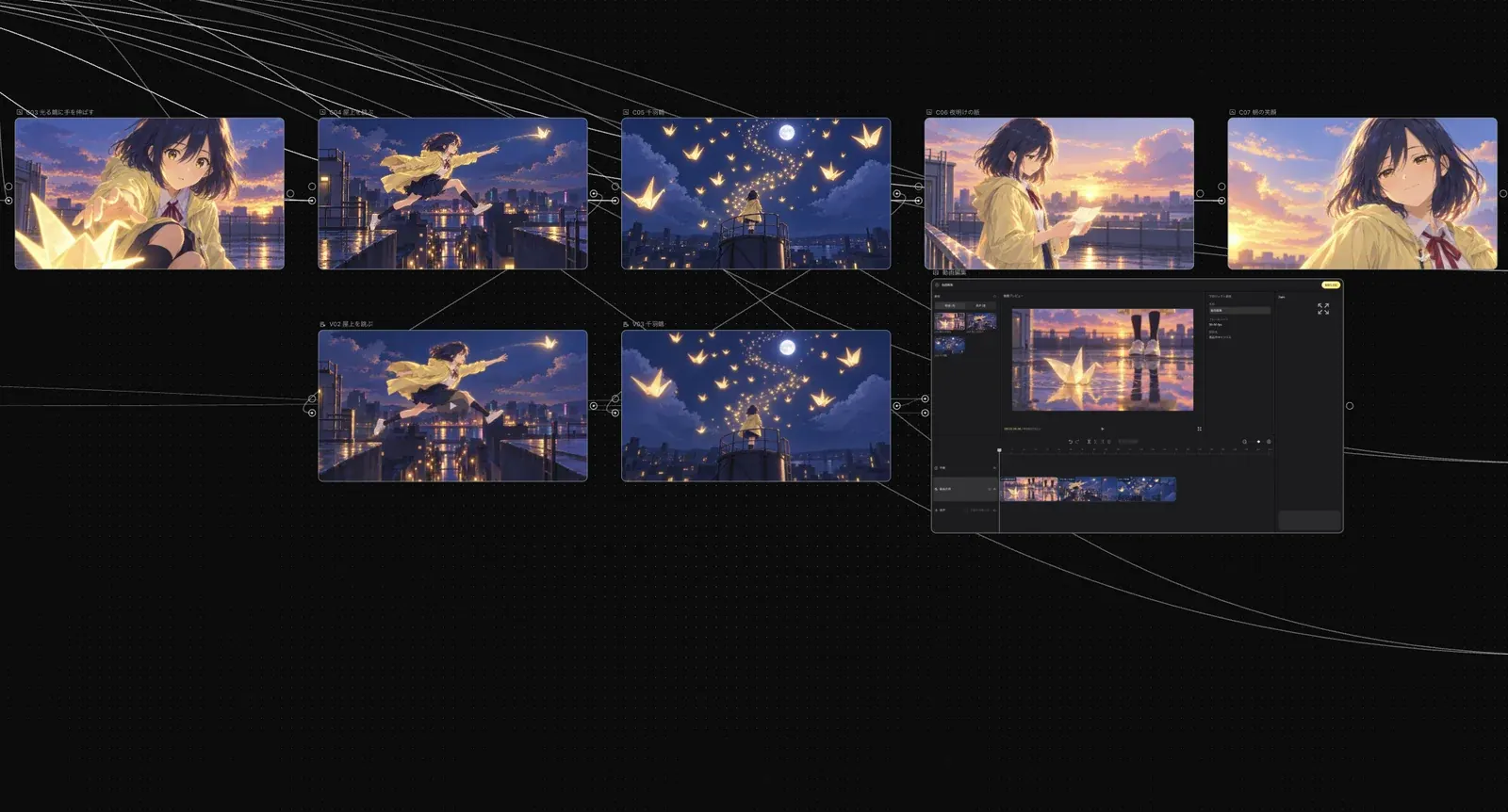
The editor
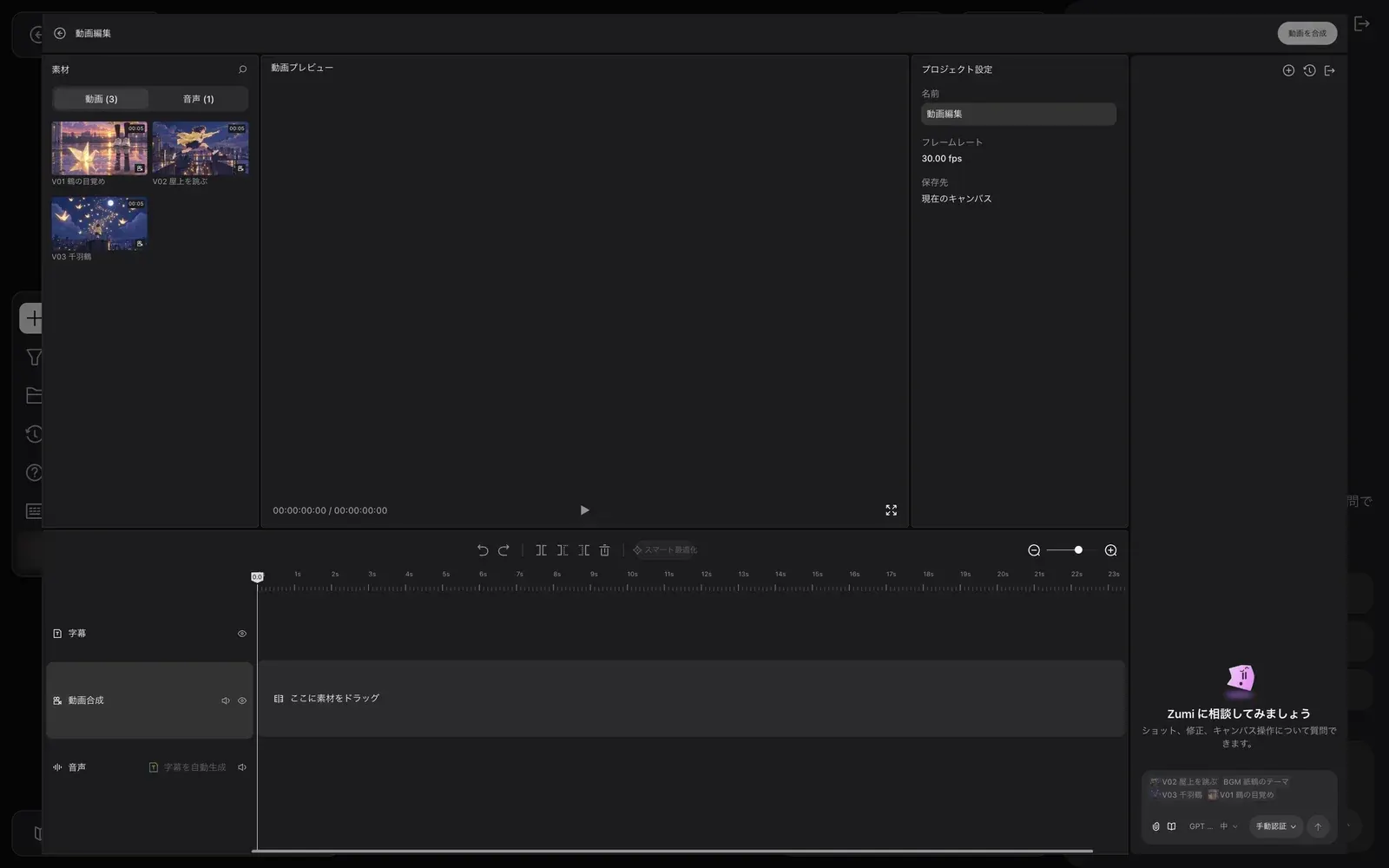
- "Materials" at the top left shows the materials connected to the node, split into the "Video (3)" and "Audio (1)" tabs. Materials placed on the timeline are marked "Added".
- The center is the "Video preview".
- The right side shows the settings for what you have selected. When nothing is selected, it shows "Project settings", where you can check "Name", "Frame rate", and "Save to".
- The Zumi panel is at the far right.
- The timeline at the bottom has 3 tracks: "Subtitles", "Video composition", and "Audio". Empty tracks show "Drag materials here".
Lay out clips and compose
Place the videos on the timeline
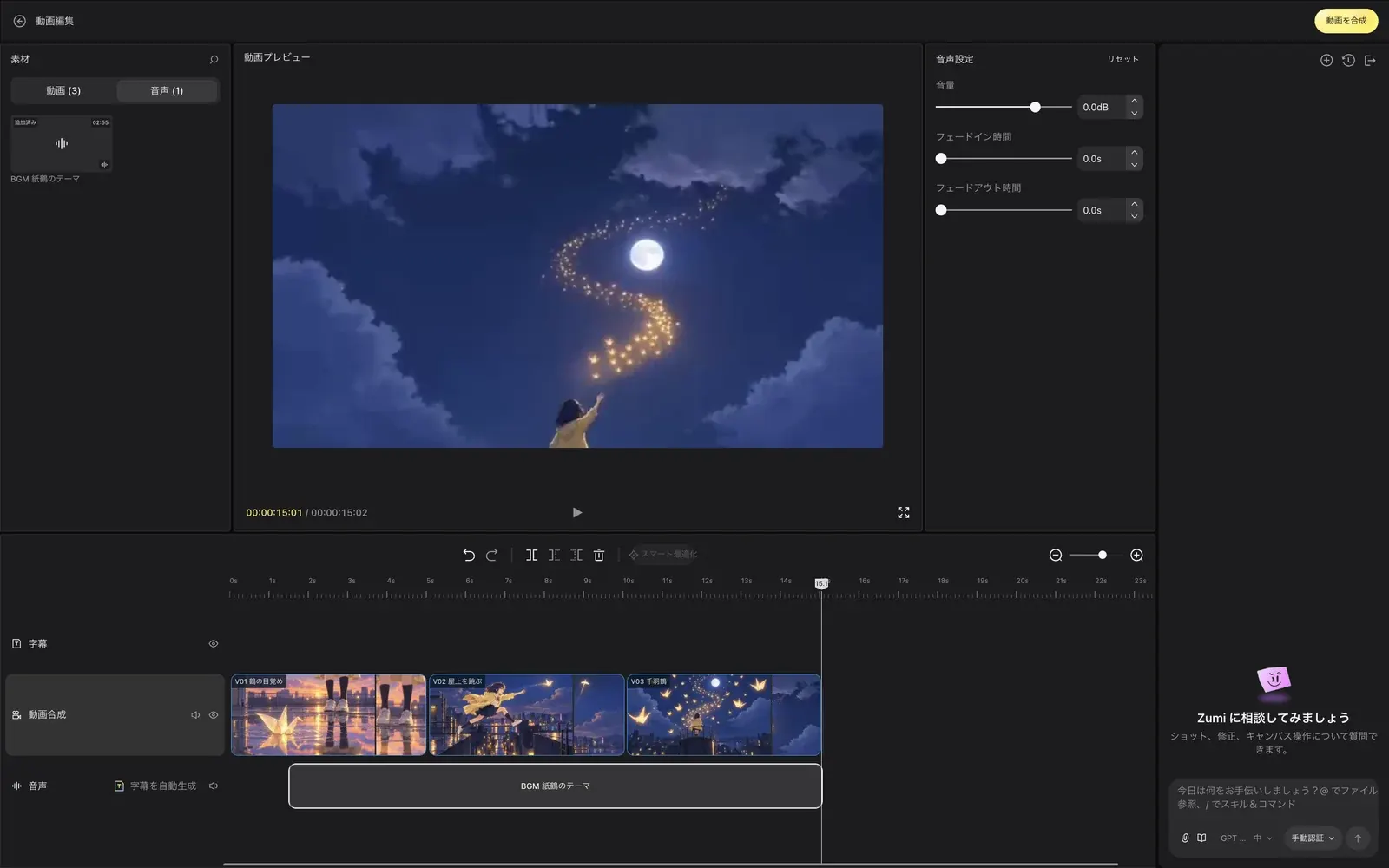
From the "Video" tab in "Materials", drag V01, V02, and V03 onto the "Video composition" track. The clips line up in order.
Place the BGM
Switch to the "Audio" tab and drag BGM 紙鶴のテーマ onto the timeline. The audio goes onto the "Audio" track automatically.
Match the length to the video
If the BGM is longer than the video, move the playhead to the end of the video (around 15 seconds in this example) and click "Split at playhead" in the toolbar. Then click "Delete right" to remove the rest.
Adjust clips
When you select a clip, the right side changes to its settings panel.
| Selection | Panel | Settings |
|---|---|---|
| Video clip | "Video settings" | "Scale", "Opacity", "Position", "Rotation", "Align" |
| Audio clip | "Audio settings" | "Volume", "Fade-in duration", "Fade-out duration" |
Click "Reset" at the top right to return to the defaults.
Click "Compose video"
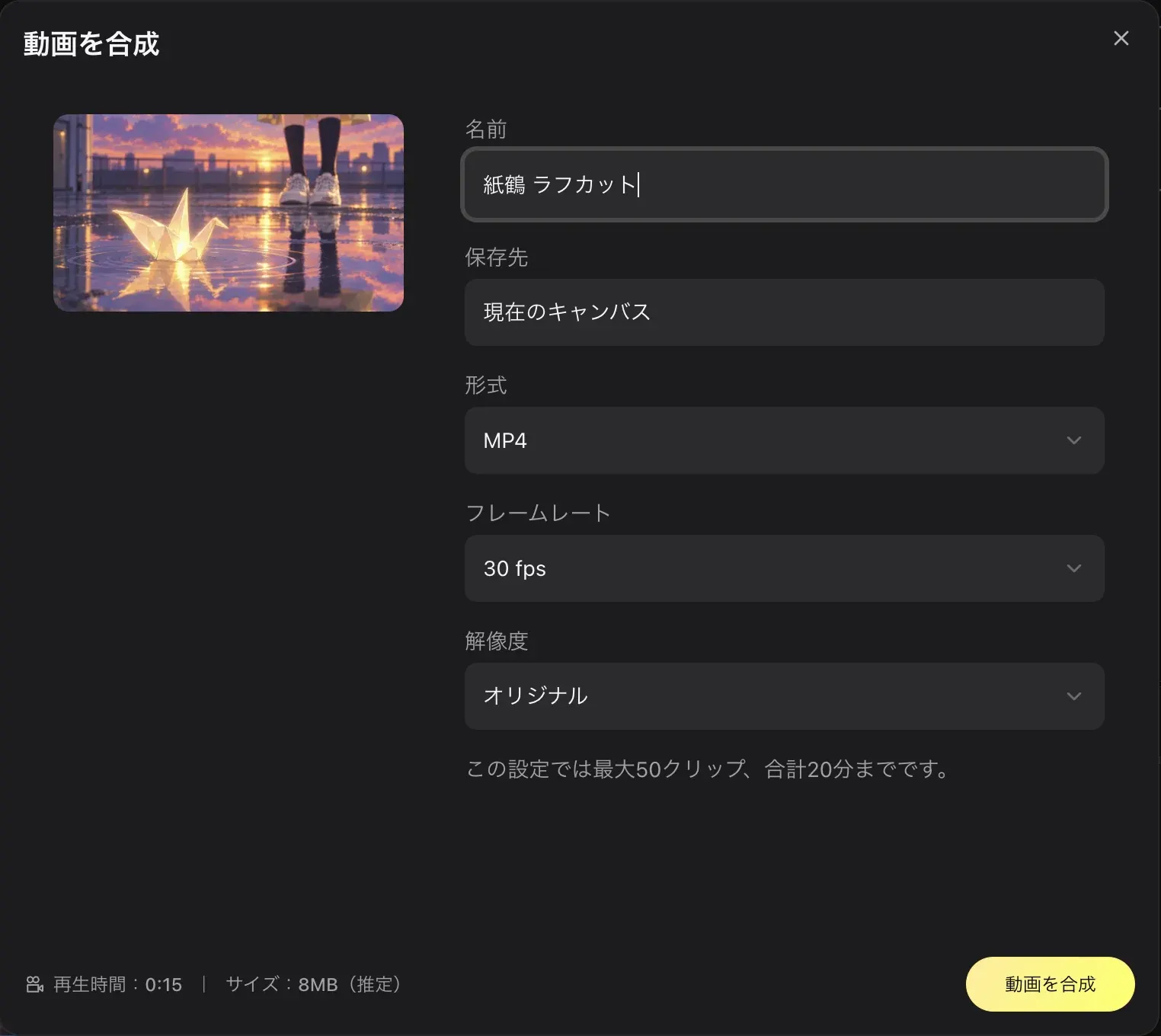
Click "Compose video" at the top right to open the dialog of the same name. Enter a "Name" (for example "紙鶴 ラフカット", meaning "Paper crane rough cut"), and check "Save to", "Format", "Frame rate", and "Resolution". The dialog also shows the duration and the estimated file size.
Wait for composing to finish
When you submit, the editor closes and the video editing node on the canvas shows its progress as "Composing N%". As the dialog says, the composed video appears on the canvas. Like any other video node, you can save the finished video with "Download" in the node's toolbar.
This is the rough cut composed with these steps.
Timeline actions
The toolbar above the timeline has these actions.
- "Undo", "Redo"
- "Split at playhead"
- "Delete right", "Delete left"
- "Remove clip"
Generate subtitles automatically
Click "Generate subtitles" on the "Audio" track to create subtitles from the audio. While it works, it shows "Generating subtitles…".
Subtitles cannot be created from audio without a human voice. For an instrumental track like the example BGM 紙鶴のテーマ, you see "Could not generate subtitles. Try again.".
Limits
There is a limit to how much you can compose. The limit is shown in the "Compose video" dialog. With the Docs Demo settings, it showed "Up to 50 clips and 20 minutes at these settings."