Interface overview
The names of each part of the canvas screen, and how to use the toolbar, account menu, shortcuts, generation history, and content filter.
When you open a project, you see the canvas screen. This page shows where everything is on that screen. When other pages say "in the left toolbar" and so on, they mean the places described here.
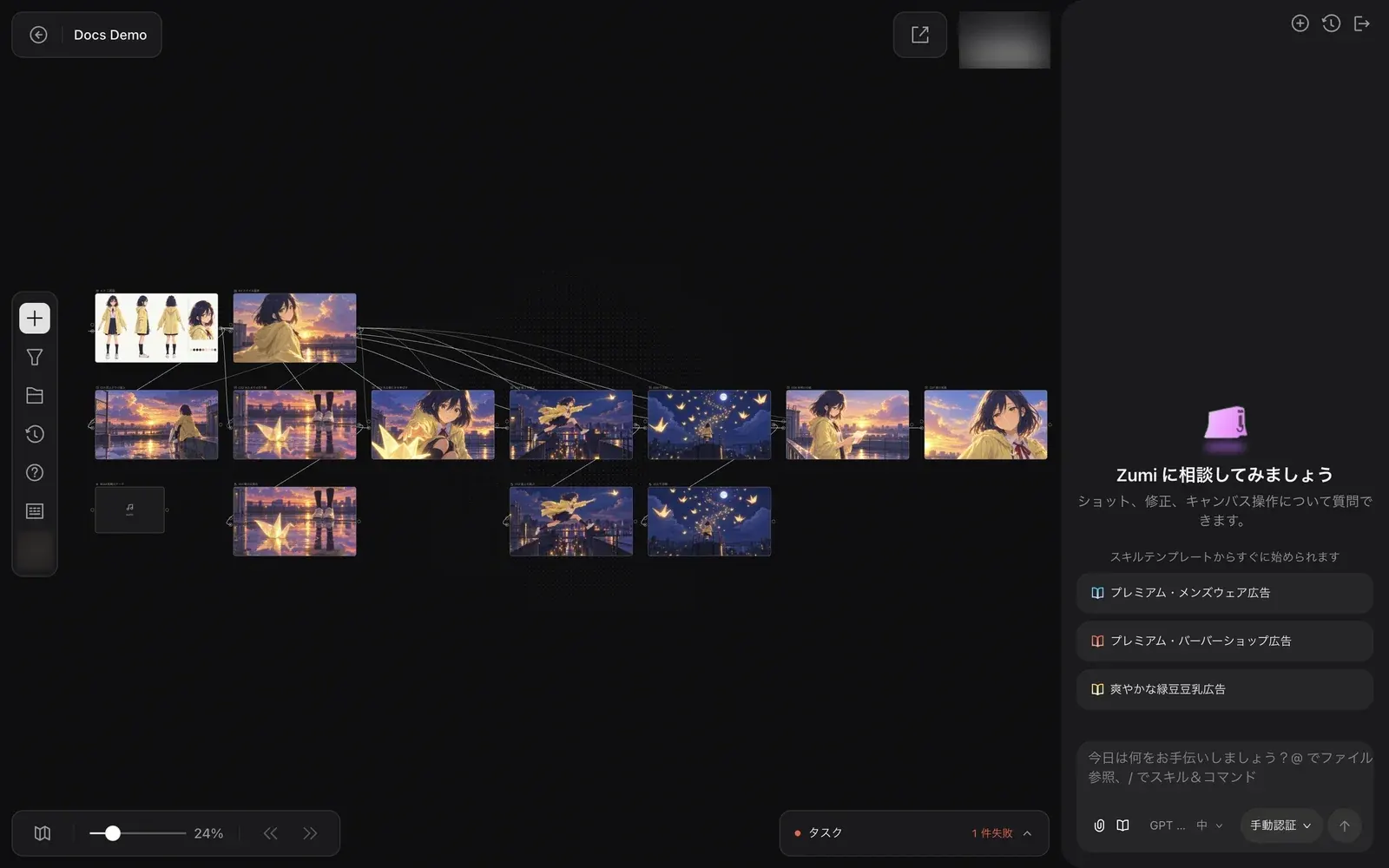
Screen layout
| Location | What is there |
|---|---|
| Top left | The back button and the project name. Click the name to change it. |
| Left edge | The toolbar. Add node, filter, library, generation history, help, shortcuts, and the account menu are stacked vertically. |
| Top right | The "Share" button and the credits button. The credits button shows your remaining credits. |
| Right side | The Zumi panel. It opens automatically when you open a project. |
| Bottom left | "Open minimap", the zoom slider (shown in %), "Undo", and "Redo". |
| Bottom right | "Tasks". Shows how many tasks are running or failed ("N running", "N failed"). |
When you close the Zumi panel, a small Zumi walks around on the canvas. It shows states such as "wandering", "daydreaming", and "watching". See Working with Zumi for how to use Zumi.
The left toolbar
The buttons are arranged from top to bottom as follows. Hover over a button to see its name.
| Button | What it does |
|---|---|
| "Add node" (+) | Creates text, image, video, audio, and other nodes. See Canvas basics. |
| "Toggle content filters" | Filters the nodes on the canvas by type, color, or tag. |
| "Library" | Opens your saved materials. See Assets and library. |
| "Generations" | Opens your generation history. |
| "Help" | Opens "Product tour" and "Manual". |
| "Shortcuts" | Opens the list of keyboard shortcuts. |
| Avatar ("Account and project") | Opens the menu for project info, preferences, interface language, and feedback. |
The account and project menu
Click the avatar at the bottom of the toolbar to open the "Account and project" menu.
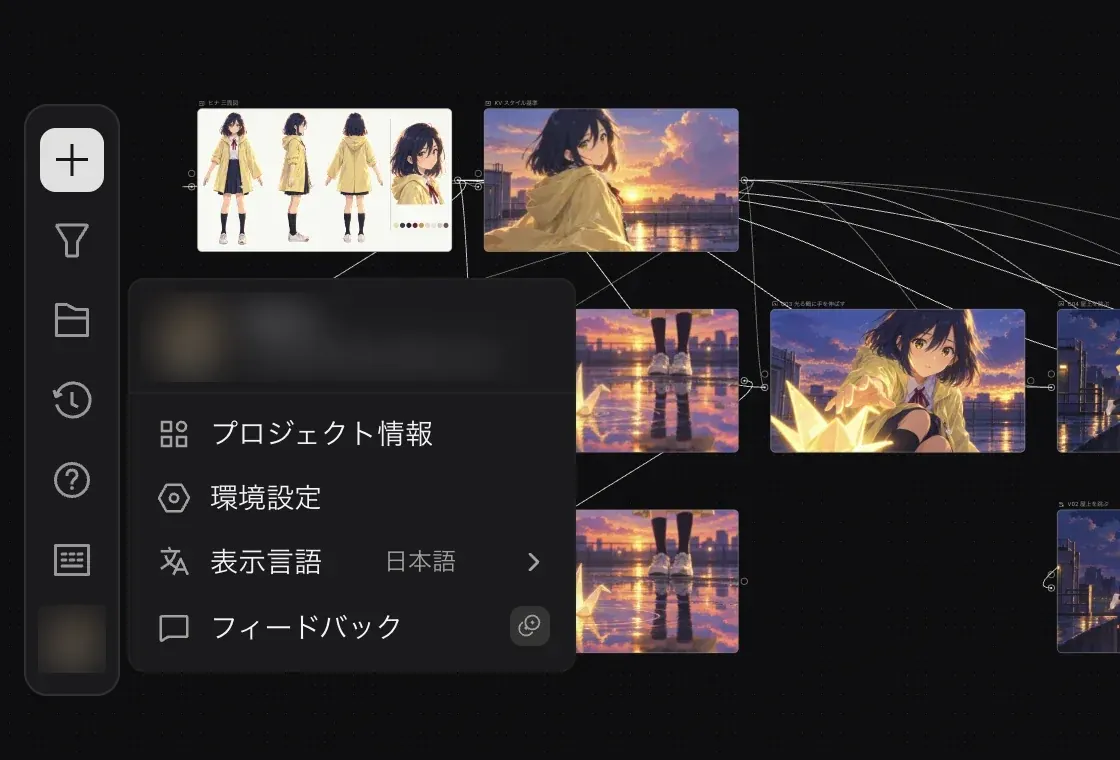
- "Project info". See the credits used in this project and their breakdown. See Plans and credits.
- "Preferences". Set "Interface language", "Alignment guides" under "Canvas", and "Flash title bar" and "Play sound" under "When work completes".
- "Interface language". Switches the language of the interface.
- "Feedback". Send comments or bug reports. It carries a "Rewards" badge, and helpful feedback may earn you credits.
View shortcuts
Press ? on the canvas or click "Shortcuts" in the toolbar to open the "Shortcuts" panel.
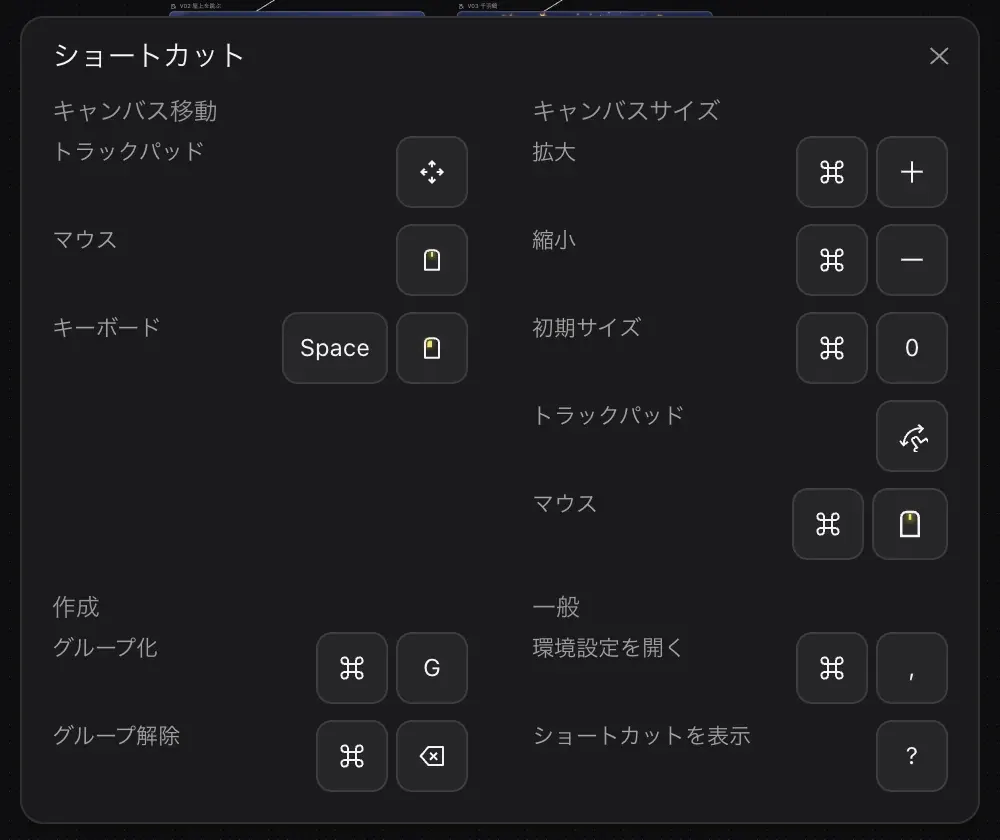
| Category | Action | Key |
|---|---|---|
| Canvas size | Zoom in | ⌘ + |
| Zoom out | ⌘ − | |
| Reset zoom | ⌘ 0 | |
| Create | Group | ⌘ G |
| Ungroup | ⌘ ⌫ | |
| General | Open preferences | ⌘ , |
| Show shortcuts | ? |
The "Move canvas" section shows diagrams of how to move the canvas with a trackpad, a mouse, or the Space key on the keyboard. On Windows, use Ctrl instead of ⌘.
View generation history
Click "Generations" in the toolbar to open the generation history panel.
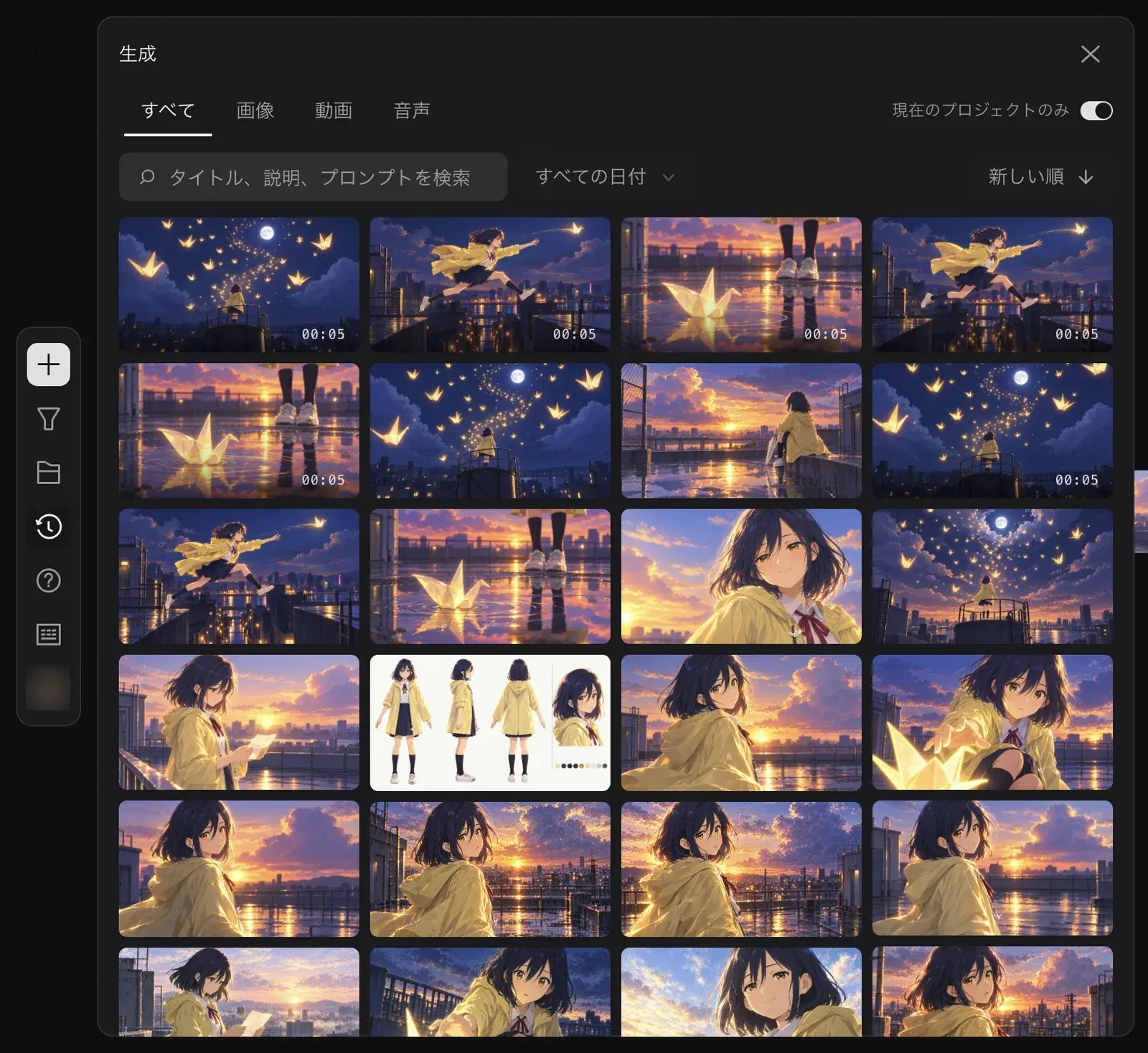
- Use the tabs at the top to switch between "All", "Image", "Video", and "Audio".
- Turn on "Only this project" to show only what was generated in this project.
- Change the time range with "All dates" and the sort order with "Newest first".
- To show older history, click "Load more" at the bottom.
Filter nodes on the canvas
When there are many nodes and it is hard to find the one you want, click "Toggle content filters" in the toolbar. The "Filter content" panel opens on the left.
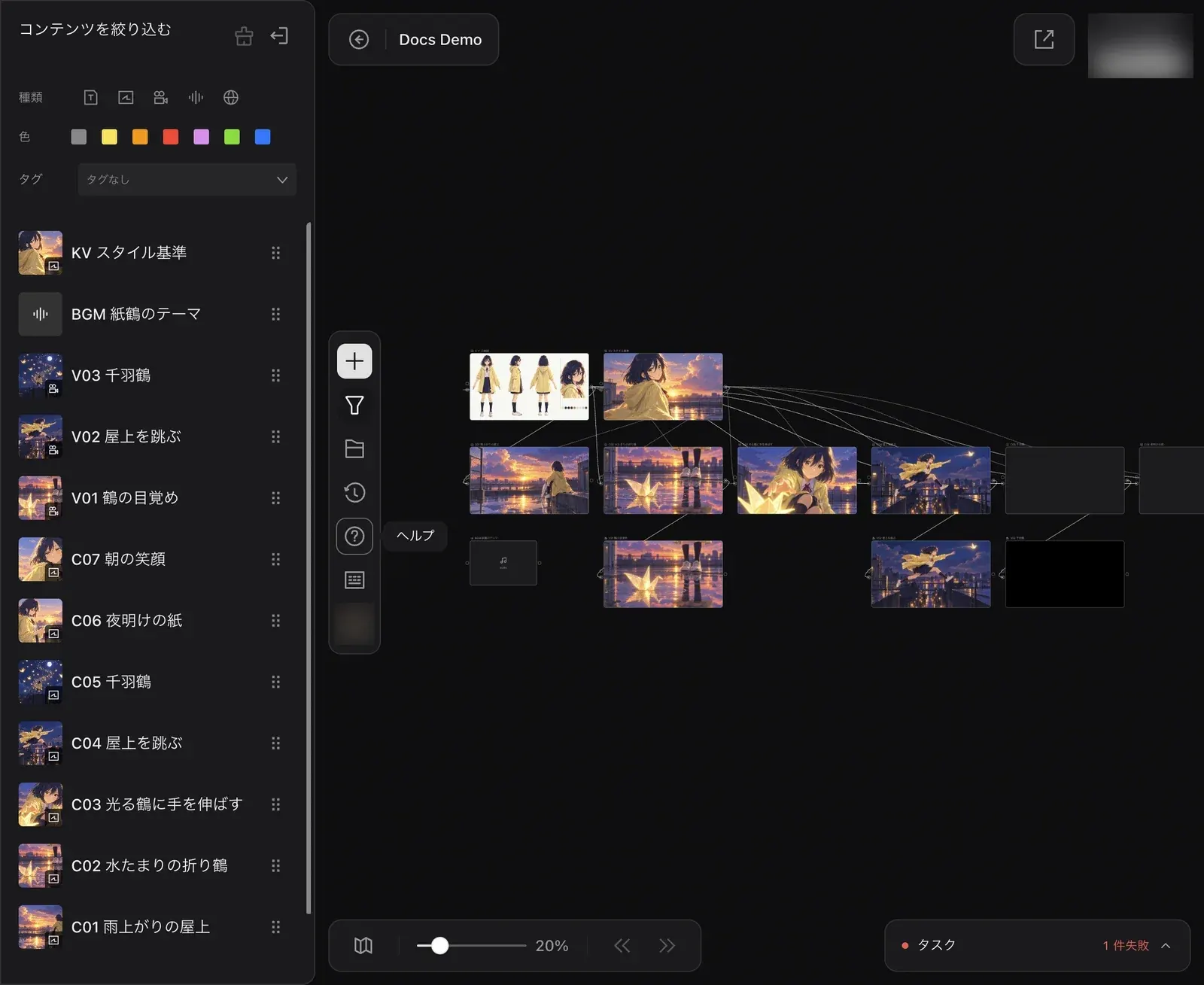
Choose conditions under "Type", "Color", and "Tags" at the top, and the list below shows only the matching nodes. The list shows node names, so in Docs Demo you can find "C04 屋上を跳ぶ" (C04 Leaping across the rooftop) or "BGM 紙鶴のテーマ" (BGM Paper crane theme) by name.