Video generation
How to choose a generation mode and model on a video node and make video from storyboards.
On a video node, you generate video from text, images, or existing video. This page uses the example of making V01 from Docs Demo's storyboard C02 to explain how to choose a mode and a model, and how to set the duration and resolution.
Before you start, note that generation requires credits. See Plans and credits for how to check your balance.
The input panel
When you select a video node, the input panel opens below it. Below the reference image field and the prompt are the model (for example "Seedance 2.5"), the generation mode (for example "Image to video"), the parameters (for example "5s·720p·Audio off · ×1"), and "Submit". "Submit" shows the credits this setup will use.
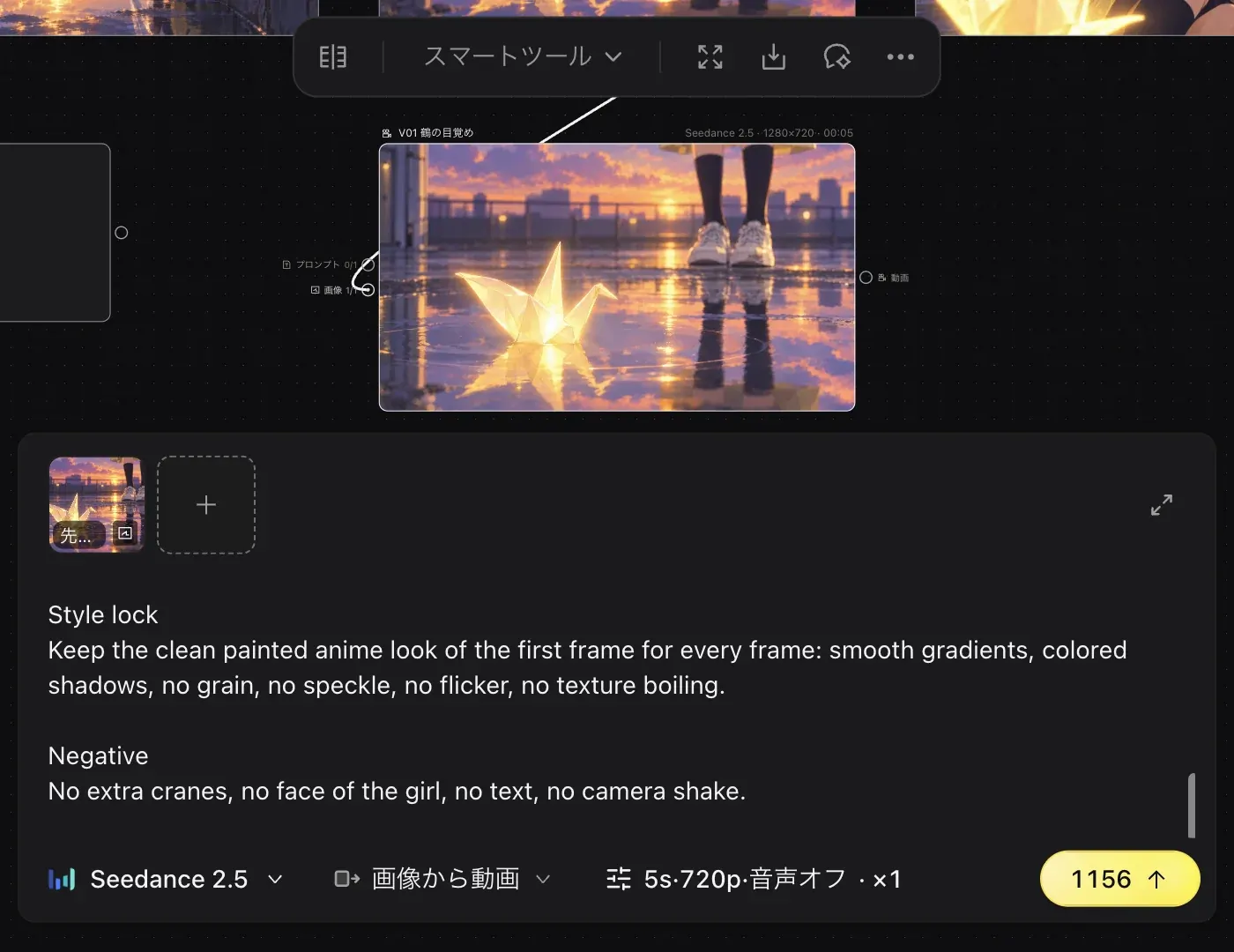
Make video from a storyboard
Prepare a video node
Choose "Video" from "Add node". Add the storyboard you want to start from (for example C02) to the reference image field. You add references the same way as in Image generation.
Choose a generation mode
Click the generation mode button and choose "Image to video". Each mode shows the inputs it needs (the number of images, videos, and audio clips).
| Mode | When to use it |
|---|---|
| "Text to video" | Make video from a prompt only |
| "Image to video" | Make video from a single image, such as a storyboard |
| "First/last frame to video" | Fill in the motion between a first and a last image |
| "Reference to video" | Make video based on reference materials |
| "Video edit" | Edit an existing video |
| "Video extend" | Extend an existing video |
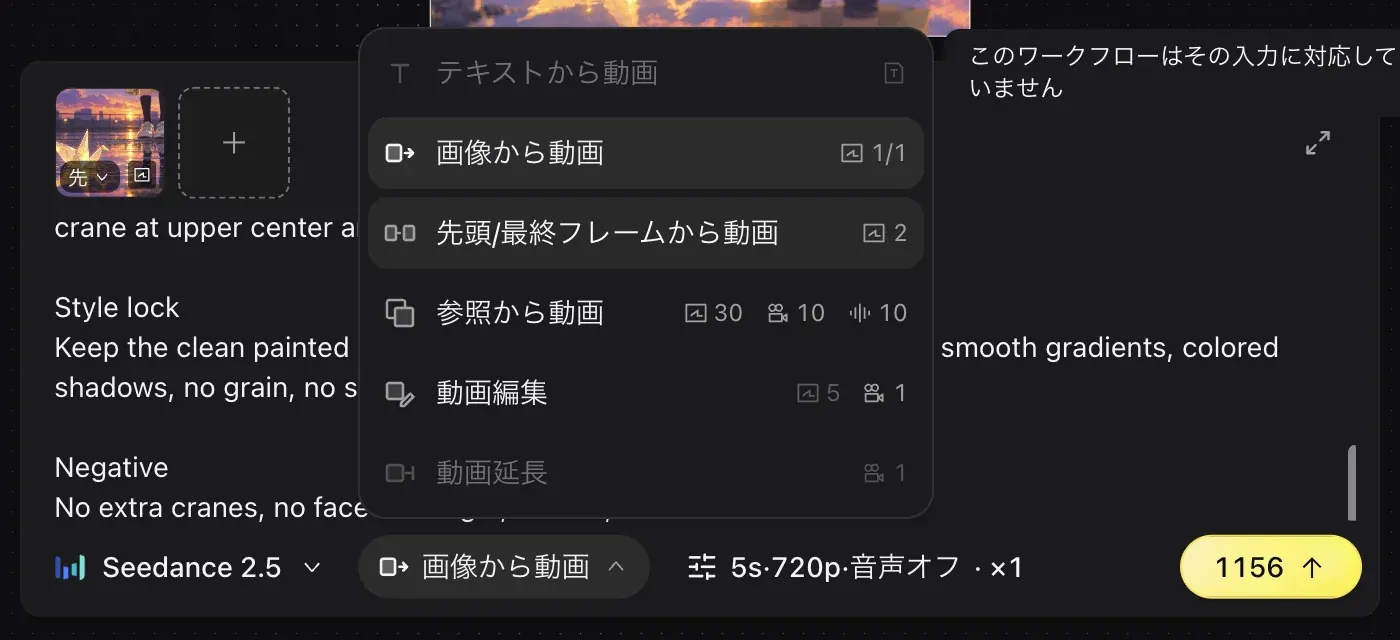
If you choose a mode whose inputs are missing, you see "This workflow cannot accept that input".
Choose a model
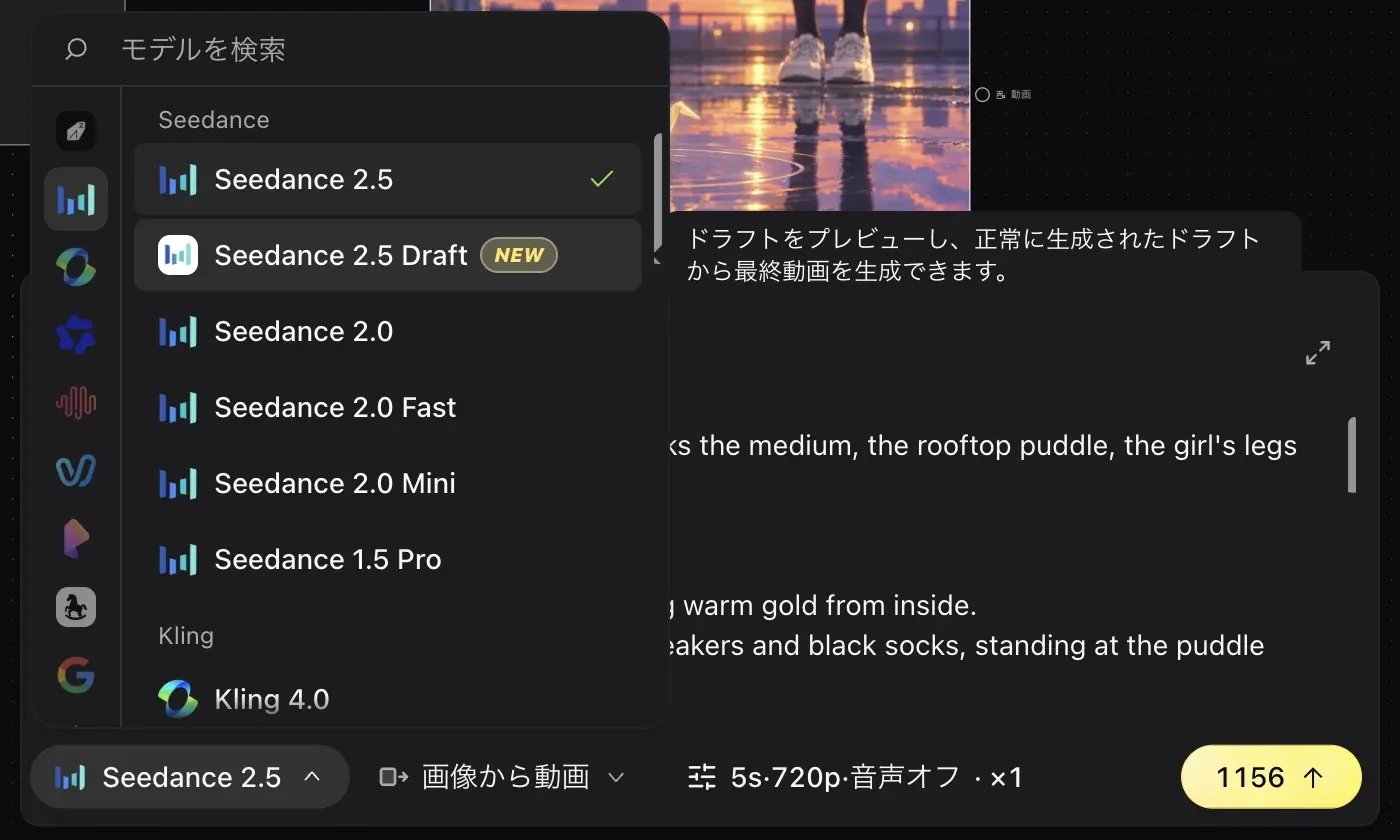
Click the model button. Models are grouped into Oxygen, Seedance, Kling, Wan, MiniMax, Vidu, PixVerse, HappyHorse, Veo, Gemini, and Topaz. Seedance includes 2.5, 2.5 Draft, 2.0, 2.0 Fast, 2.0 Mini, and 1.5 Pro.
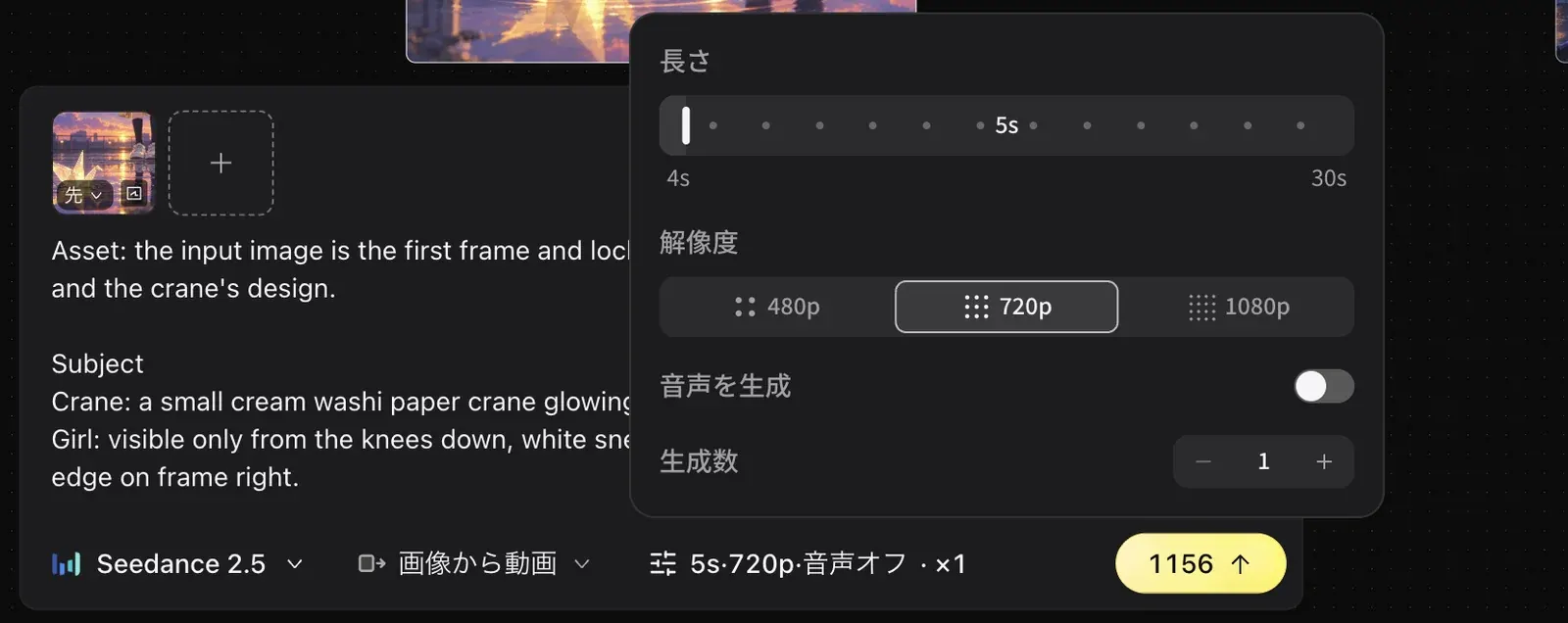
Set the duration and resolution
Click the parameter button. You can set:
- "Duration". Use the slider to choose from 4s to 30s. The default is 5s.
- "Resolution".
- "Generate audio".
- "Generation count".
Submit
Click "Submit". The credits shown on the button are used.
Seedance 2.5 Draft and Seedance 2.5
Seedance 2.5 Draft is a draft model for checking motion first. When you choose it, you see "Preview a draft, then generate a final video from a successful draft." Its only "Resolution" is 480p.
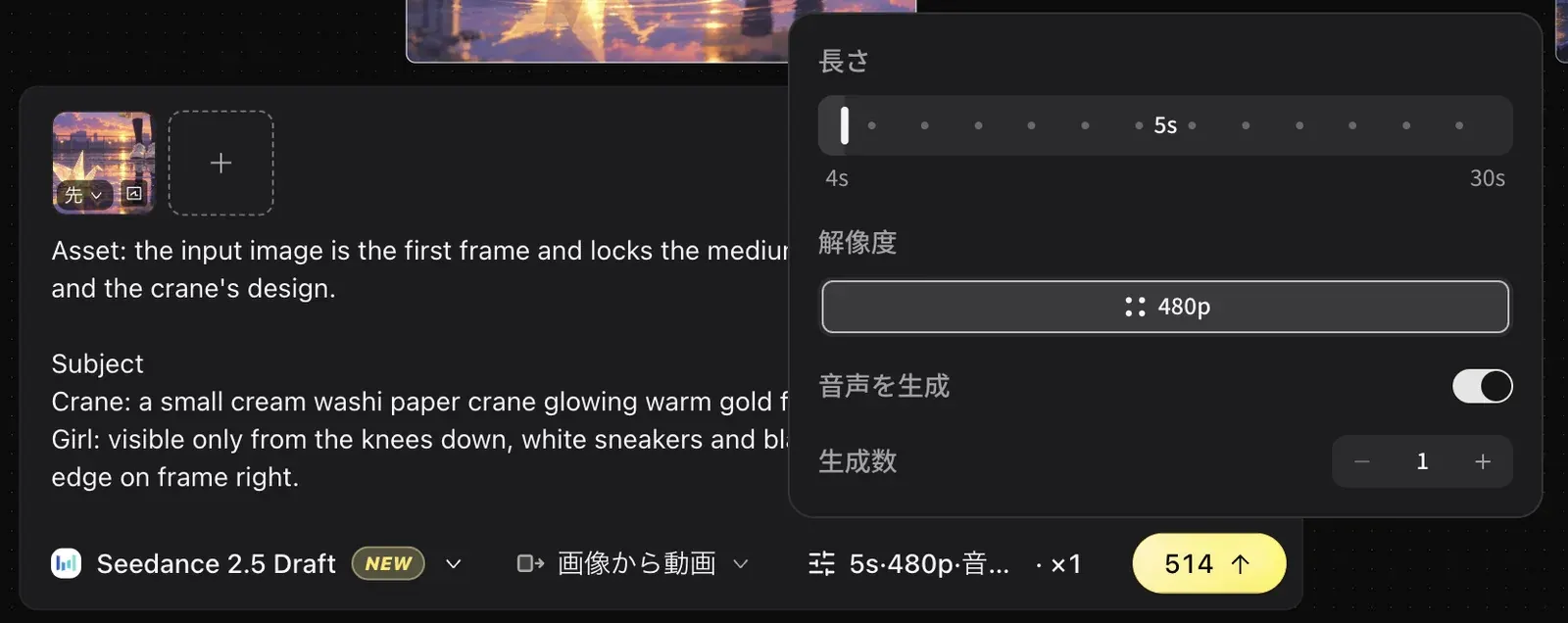
The recommended approach is to check the motion with Seedance 2.5 Draft, then finish with Seedance 2.5.
Measured credit costs for 5 seconds (as of October 2026) are below. Check the "Submit" button for the current values.
| Model | 480p | 720p | 1080p |
|---|---|---|---|
| Seedance 2.5 Draft | 514 | N/A | N/A |
| Seedance 2.5 | 514 | 1156 | 2600 |
At 5 seconds and 480p, Seedance 2.5 Draft and Seedance 2.5 cost the same credits. Draft only saves credits compared with Seedance 2.5 at 720p or 1080p. The credit cost of Draft does not change whether "Generate audio" is on or off.
Set the first and last frames
Choose "First/last frame to video" to specify 2 images, one for the start and one for the end. In Docs Demo, for example, you could use C04 as the first frame and C05 as the last frame. This mode needs 2 images.
See Video editing to join your videos into one. You can trim or upscale video with Smart tools.