Music and audio
How to make BGM with Suno V6 on an audio node, and which audio models are available.
On an audio node, you generate music such as BGM, and speech. This page uses Docs Demo's "BGM 紙鶴のテーマ" (BGM Paper crane theme) as the example to explain how to make BGM with Suno V6.
Before you start, note that generation requires credits. See Plans and credits for how to check your balance.
Make BGM with Suno V6
Create an audio node
Choose "Audio" from "Add node". See Canvas basics for how.
Choose Suno V6 as the model
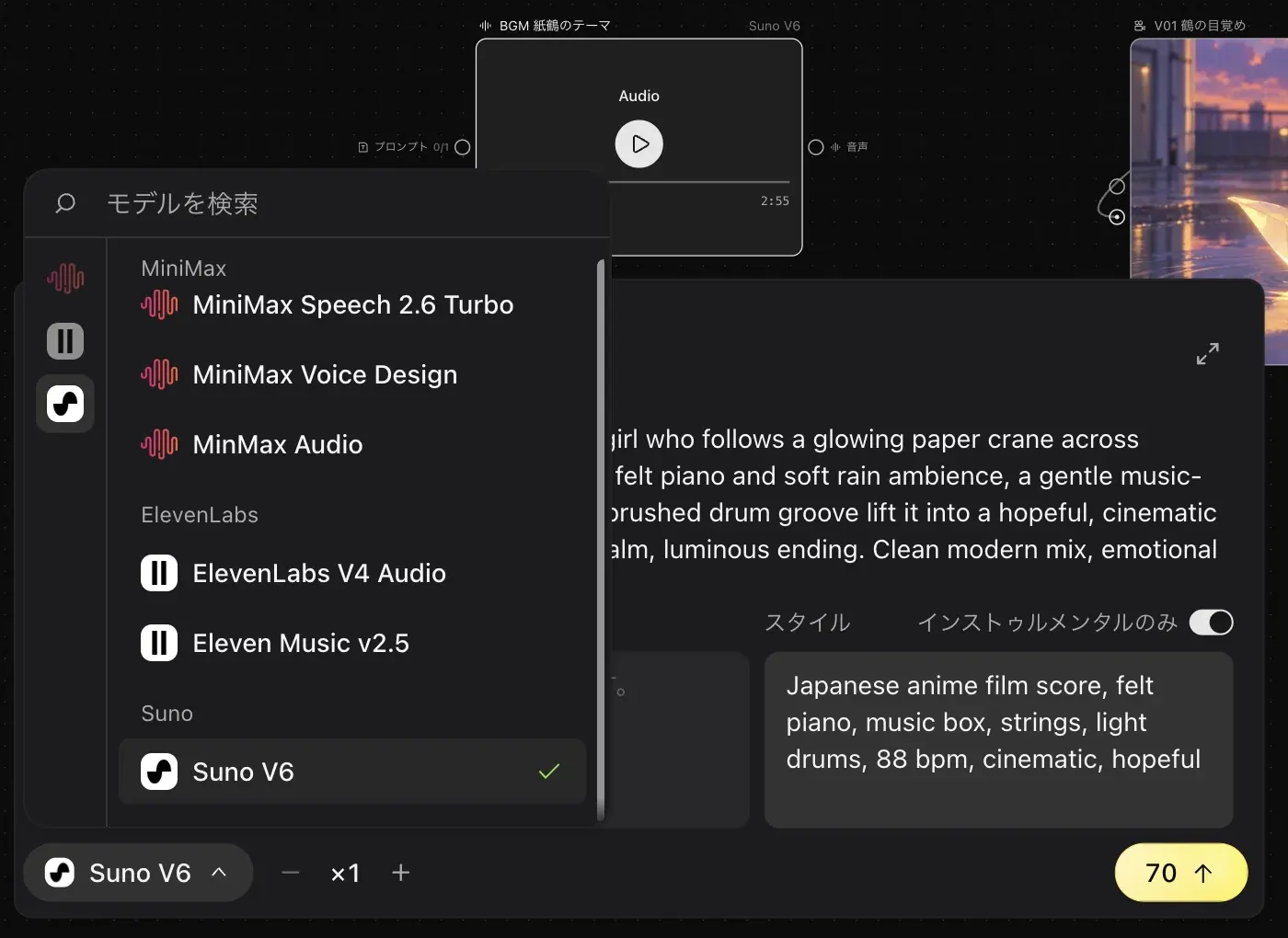
Click the model button in the input panel and choose "Suno V6".
Describe the track
When you choose Suno V6, the input panel changes to a dedicated layout.
- In the top field, write the mood and progression of the track as a prompt.
- "Lyrics" is optional. If you leave it empty, Suno writes them for you.
- In "Style", write the genre, instruments, tempo, and so on.
- For a track without vocals, turn on "Instrumental only".
- Change "Generation count" with − and +.
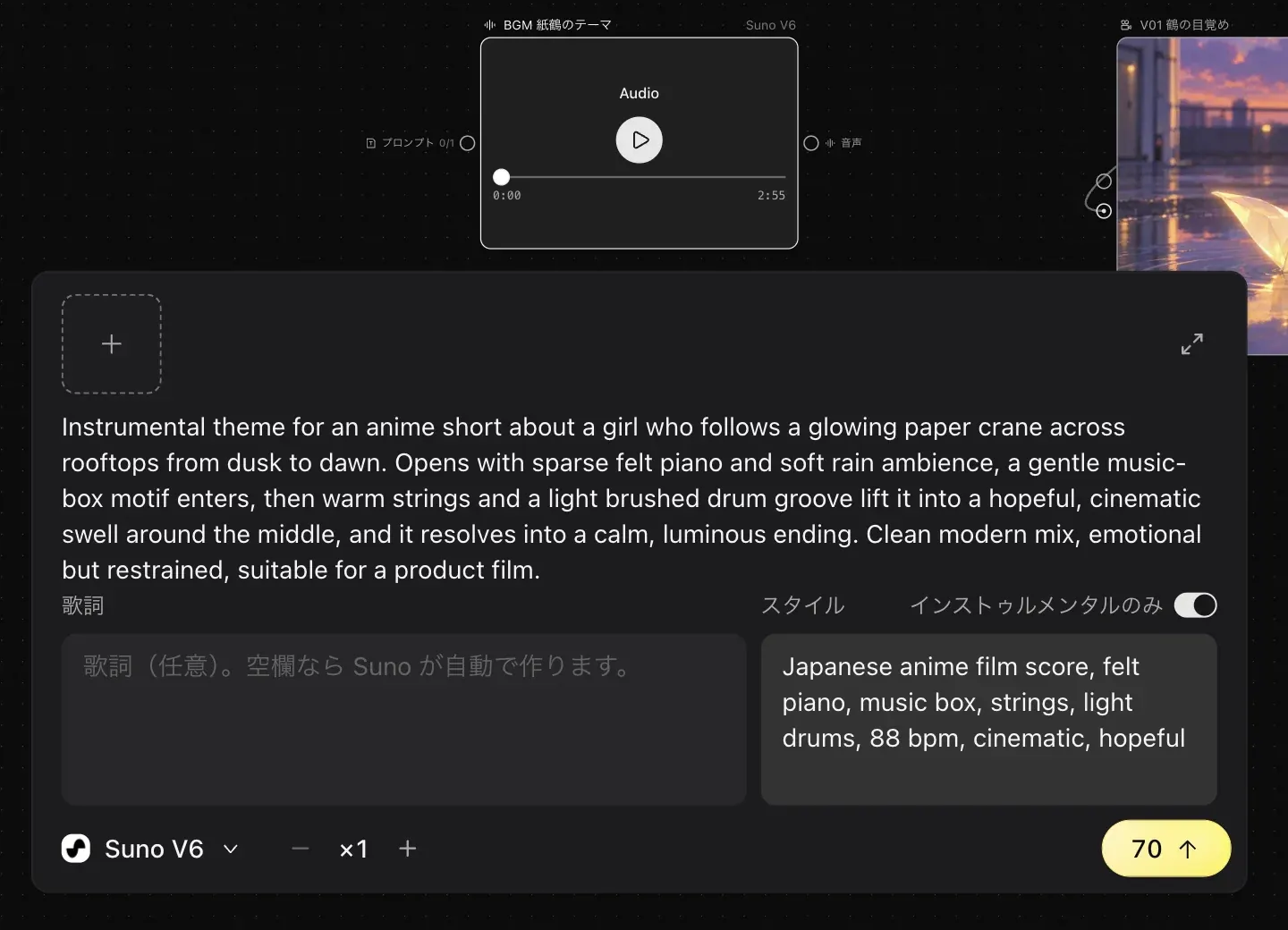
For BGM 紙鶴のテーマ, "Instrumental only" is on, and "Style" lists instruments such as piano, music box, and strings, along with the tempo.
Submit
Click "Submit". The credits shown on the button are used.
In the usage list in "Project info", Suno V6 appears as "Suno Chirp V6".
Available audio models
Open the model button to choose from these models.
| Group | Models |
|---|---|
| MiniMax | MiniMax Speech 2.6 Turbo, MiniMax Voice Design, MinMax Audio |
| ElevenLabs | ElevenLabs V4 Audio, Eleven Music v2.5 |
| Suno | Suno V6 |
See Video editing to lay your BGM under a video.