Your first video
Create a new project, generate a character sheet, storyboards, video, and BGM, and export a rough cut, from start to finish.
This page walks through making one short video from start to finish. The example is the story from the Docs Demo project. On a rooftop after the rain, a girl named Hina meets a glowing paper crane. You make a character sheet, reference it to draw storyboards, turn the storyboards into video, and finally lay the clips out with BGM and compose them into one video.
This is the finished video.
Before you start: Sign in to AZ8 Studio (studio.az8.art) and make sure you have credits left. Generation uses credits. Credits are separate for each workspace, so decide up front which workspace you will work in. See Plans and credits and Team space for details.
Check your workspace
Open studio.az8.art and check the current workspace with the workspace button at the bottom left. The left sidebar lists "New project", "Projects", "Library", "Generations", "Workflow", and "Community", with your "Recent" projects below them.
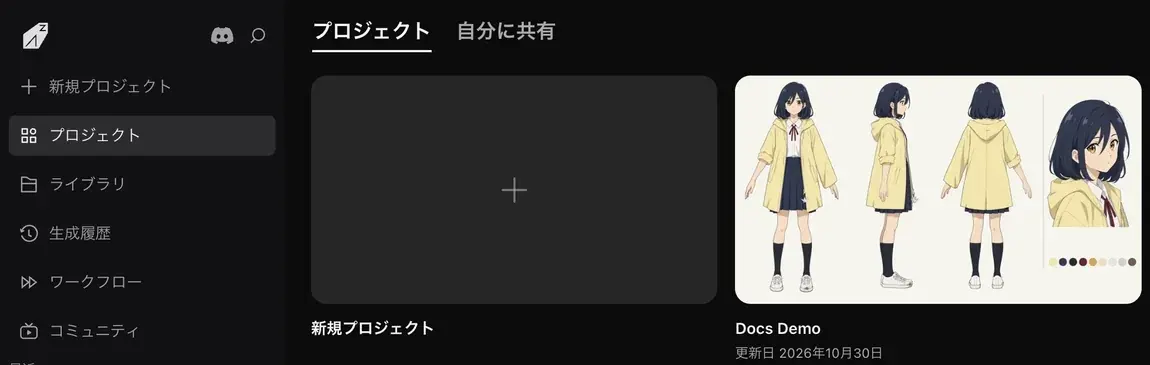
Create a new project
Click the first card in the project list, "New project" (+). The canvas for the new project opens right away. Its initial name is "New Reel". Click the name at the top left to change it.
The center of the empty canvas shows "Try creating with AI in one step", along with templates and quick-start buttons for "Text", "Image", "Video", "Audio", and "3D scene". The Zumi panel opens automatically on the right.
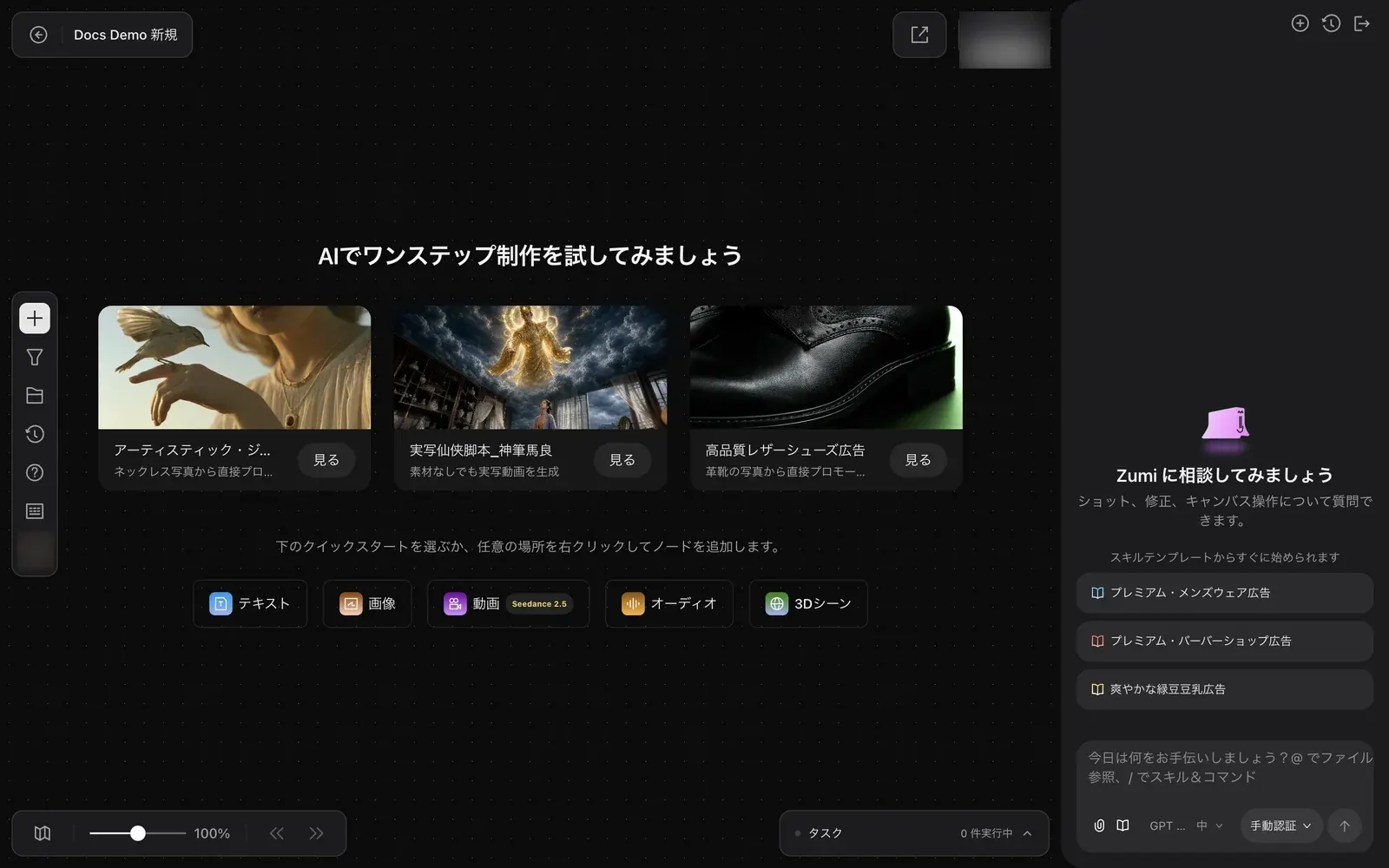
Make a character sheet
Click "Image" in the quick start to create an image node. The input panel opens below the node.
- Use the model button to choose "GPT Image 2.5 Sunburst".
- In the prompt, describe the character's appearance and say that it is "a character sheet with front, side, and back views side by side".
- Use the parameter button (for example "16:9·2K·Extra high · ×1") to set the aspect ratio, resolution, and quality.
- Click "Submit". The number on the button is the credit cost of this run.
In Docs Demo this node is named "ヒナ 三面図" (Hina character sheet). Follow the same steps to make one image to serve as the style reference, "KV スタイル基準" (KV style reference), so the storyboards that follow share the same look.
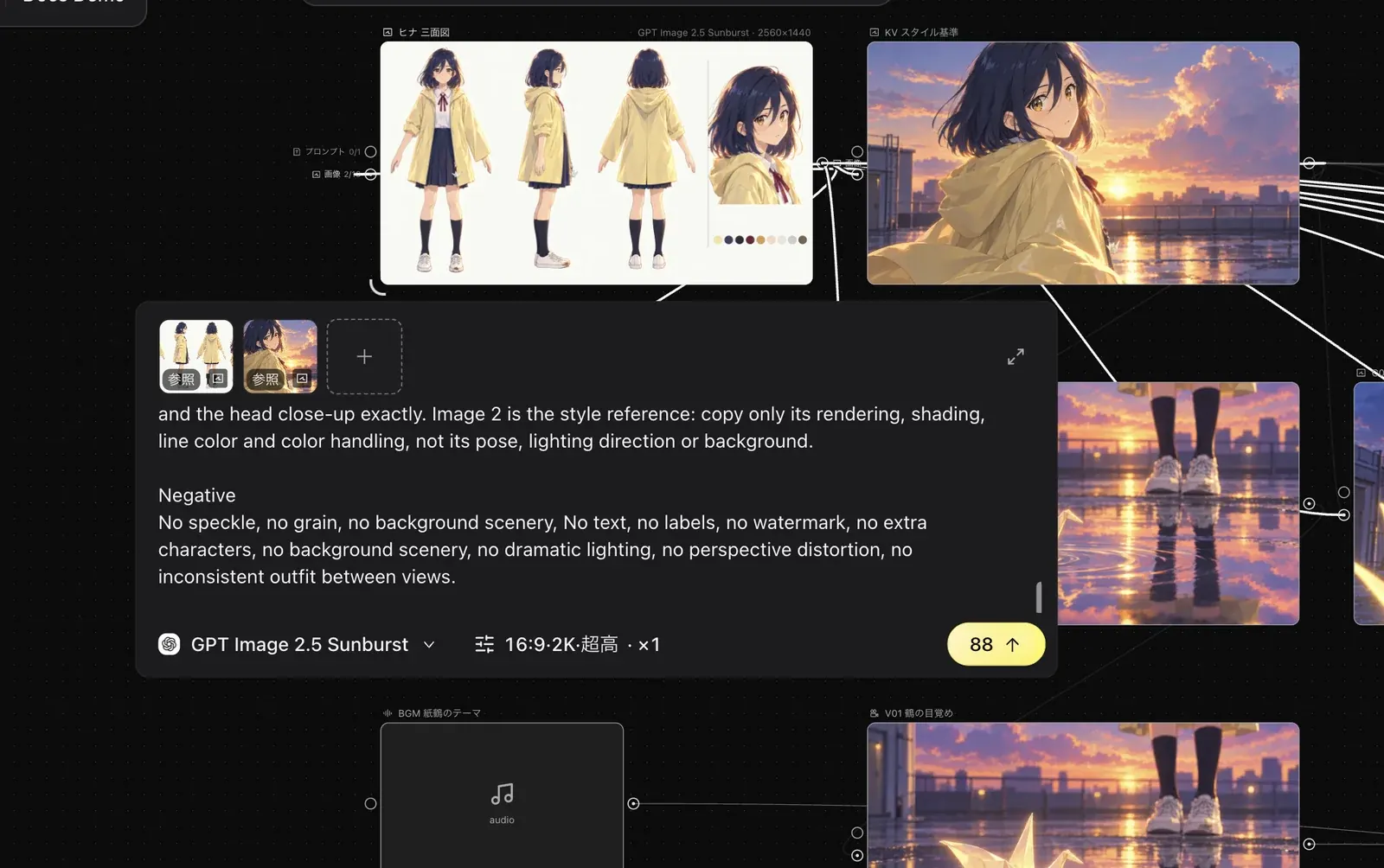
Reduce fine speckle noise
Adding constraints to the prompt such as "reduce fine speckled texture and grain" and "keep the scene moderately detailed" tends to give a cleaner image. In the example above, the Negative field says "No speckle, no grain".
Draw storyboards that reference the character sheet
Create a new "Image" node and type @ in the prompt. The "Related resources" list opens. Choose "ヒナ 三面図" and "KV スタイル基準". The images you choose appear above the input field, marked as references.
Then describe the shot and click "Submit". The character sheet locks Hina's appearance and the KV locks the art style, so Hina looks the same from shot to shot. Docs Demo's 7 shots, C01–C07, were made this way.
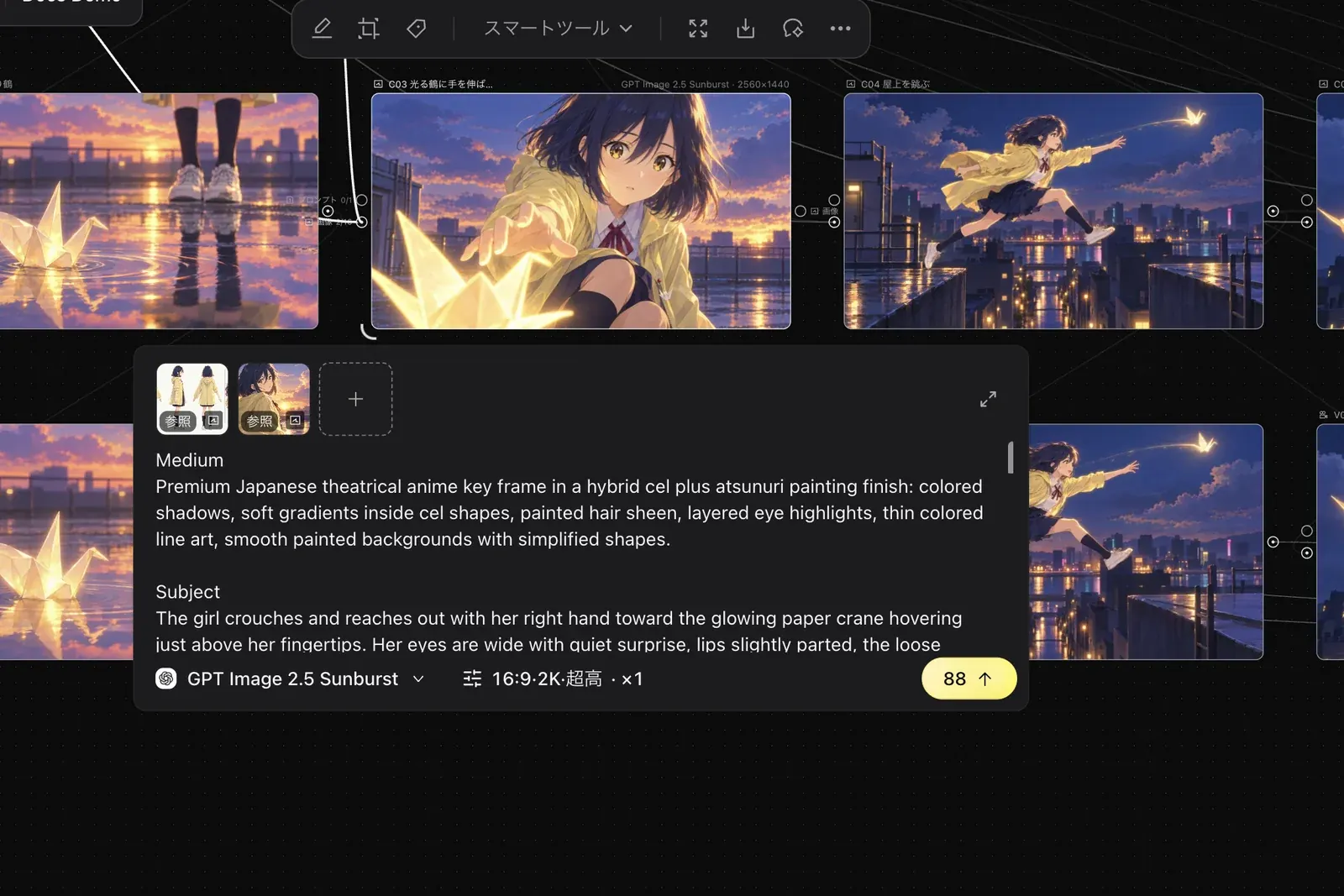
Image generation explains references in detail.
Turn storyboards into video
Create a "Video" node and add the storyboard you want to animate (for example C04) to the reference field. Choose "Image to video" as the mode. The image you added becomes the first frame.
Start with the "Seedance 2.5 Draft" model to check the motion. Once it moves the way you want, switch to "Seedance 2.5" for the final generation. Docs Demo's V01–V03 were made this way.
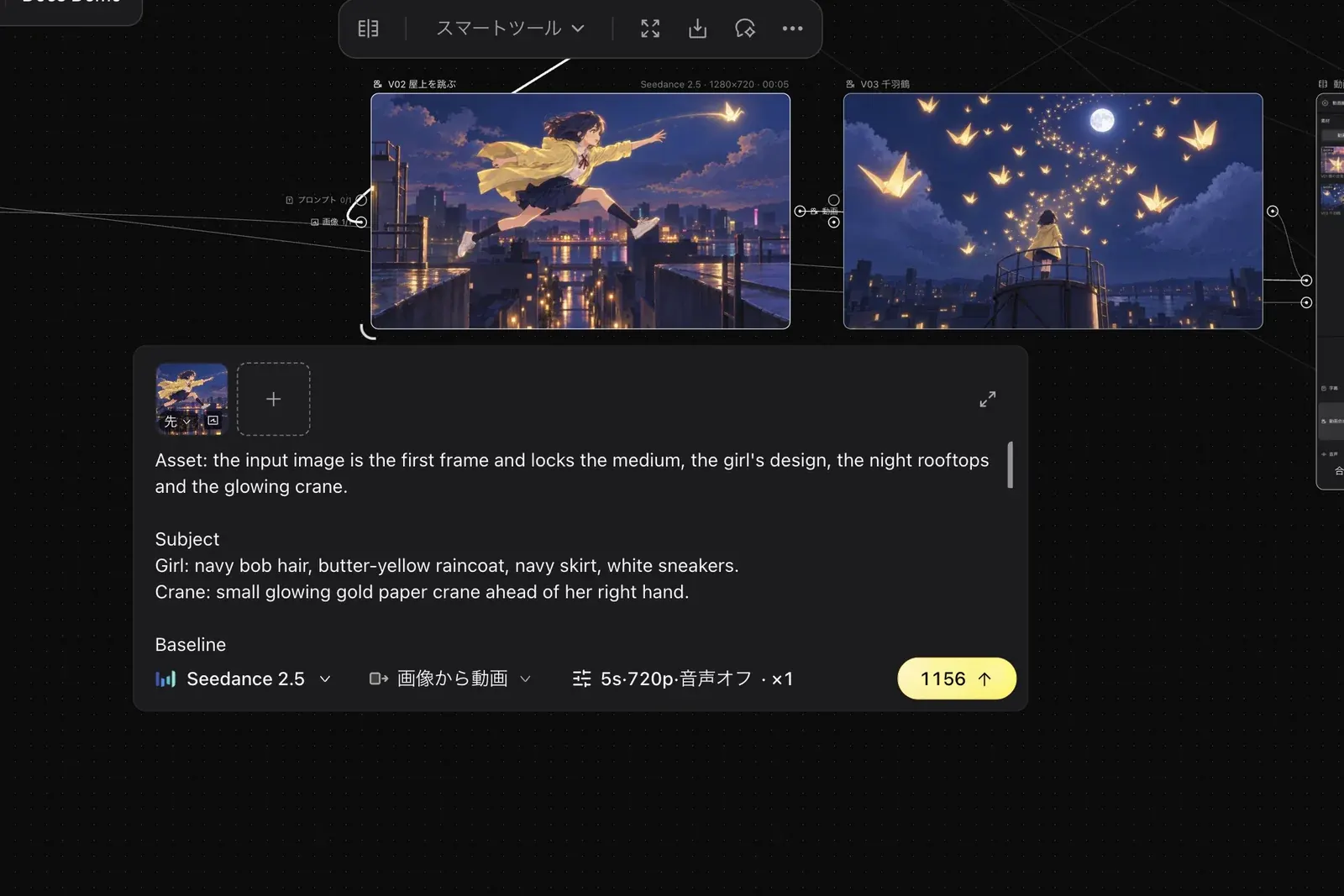
The example above uses "Seedance 2.5" with "5s·720p·Audio off", and shows a credit cost of 1156. The number changes when you change the duration or resolution. "Seedance 2.5 Draft" supports 480p only. See Video generation for details.
Make the BGM
Create an "Audio" node, choose "Suno V6" as the model, and describe the mood of the track. For a track without vocals, turn on "Instrumental only". Docs Demo's "BGM 紙鶴のテーマ" (BGM Paper crane theme) was made this way. See Music and audio for details.
Assemble a rough cut
Hold ⌘ and click V01, V02, V03, and the BGM in order to select them. Click "Video editing" in the toolbar that appears. A video editing node is created with the materials connected, and the editor opens.
Place the videos on the "Video composition" track and the BGM on the "Audio" track, adjust the lengths, and click "Compose video". Video editing explains how to work with tracks.
Export
When composing finishes, the result is added to the canvas as a regular video node. Click "Download" in the node's toolbar to save it as an MP4.
What to read next
- Interface overview lists the name and location of each part of the screen.
- Ask Zumi to "prepare videos from C04 and C05" and it will prepare the generations for you. See Working with Zumi.
- You can post finished work to the community from Sharing and collaboration.