Image generation
How to choose a model and parameters on an image node and generate images with reference images.
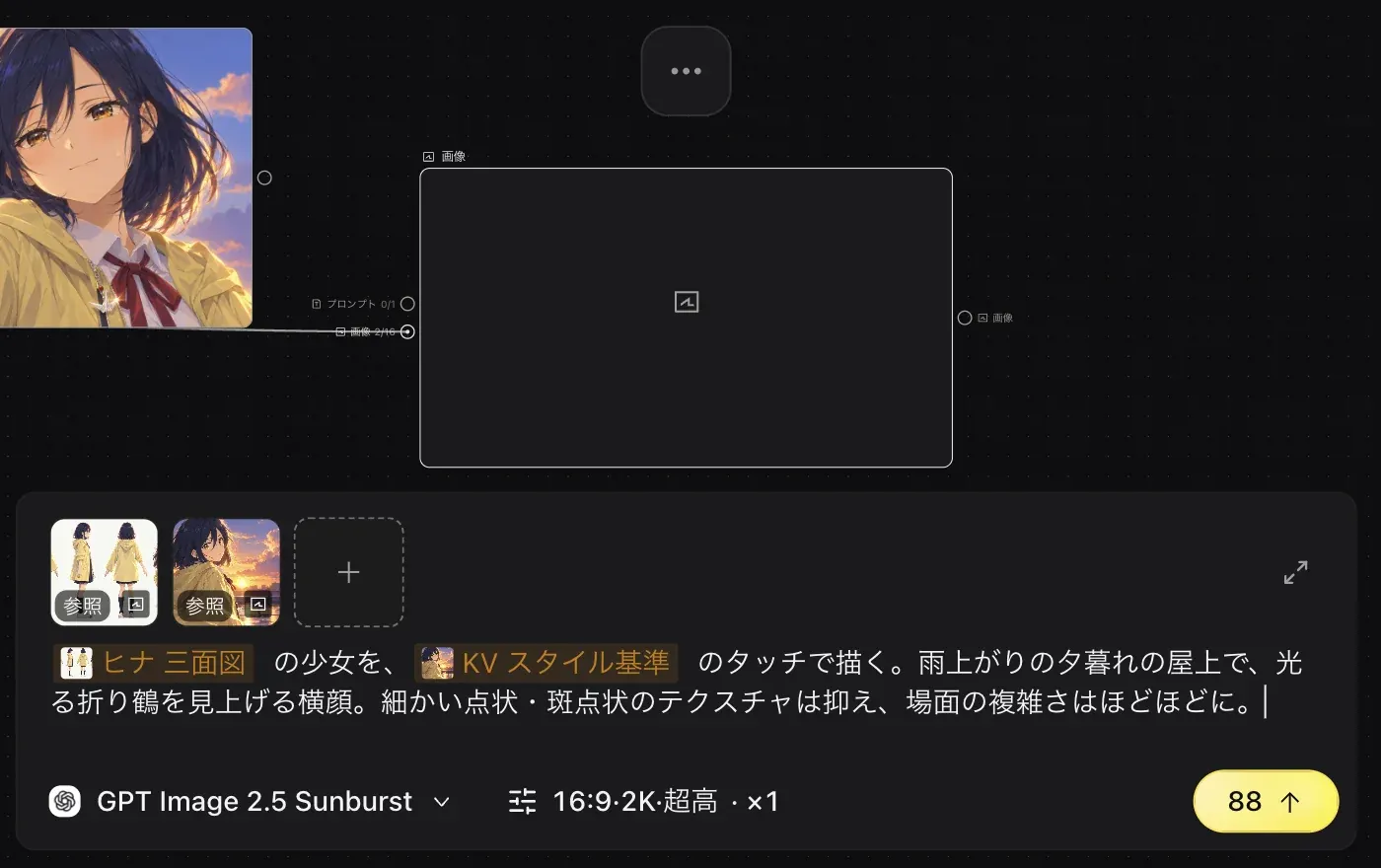
On an image node, you generate character designs, key visuals, and storyboards from a prompt and reference images. This page uses the example of making a storyboard that references Docs Demo's "ヒナ 三面図" (Hina character sheet) and "KV スタイル基準" (KV style reference).
Before you start, note that generation requires credits. See Plans and credits for how to check your balance.
The input panel
When you select an image node, the input panel opens below it. From top to bottom, it contains:
- The reference image field. The + is "Pick reference from canvas".
- The prompt.
- The model button (for example "GPT Image 2.5 Sunburst").
- The parameter button (for example "16:9·2K·Extra high · ×1").
- "Submit". The button shows the credits this setup will use.
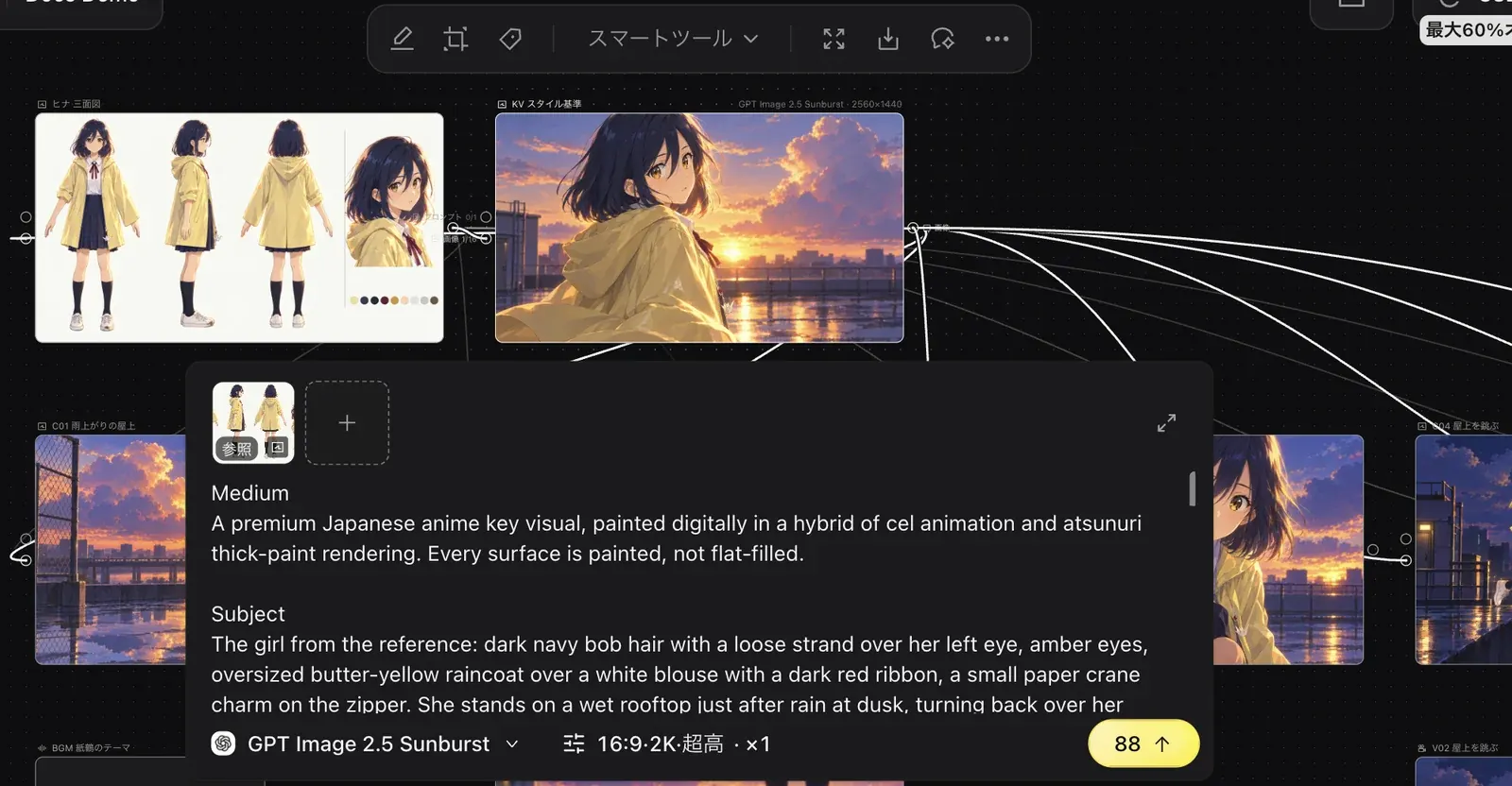
Generate an image
Create an image node
Choose "Image" from "Add node". See Canvas basics for how.
Choose a model
Click the model button. Use "Search models" at the top to find a model by name. Models are grouped into Seedream, Nano Banana, GPT, Topaz, and Midjourney. If you are not sure, start with "GPT Image 2.5 Sunburst".
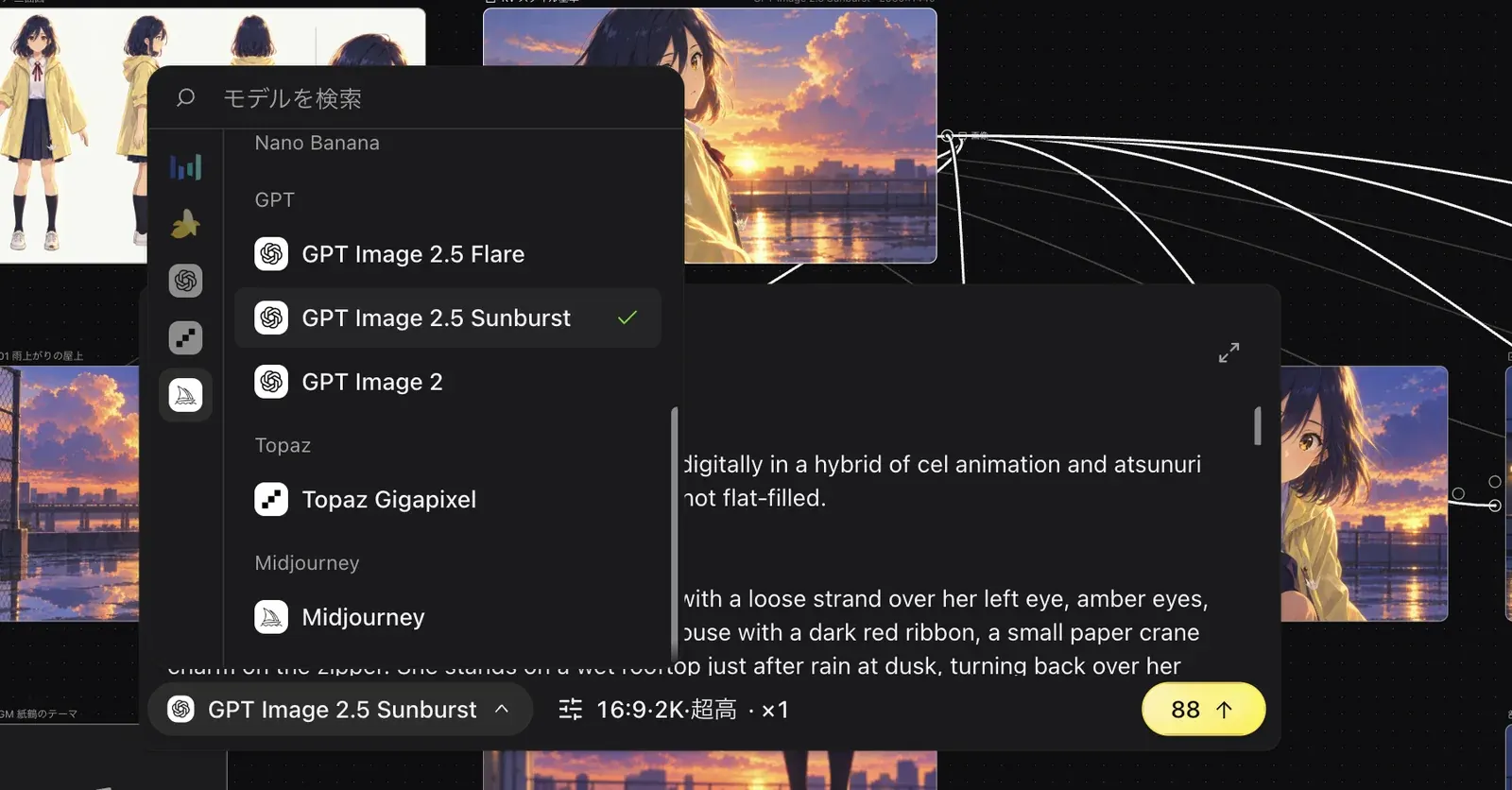
Set the parameters
Click the parameter button. GPT Image 2.5 Sunburst has the following settings.
- "Aspect ratio". There are 13 options, from 1:1 to 9:21.
- "Resolution". Choose 1K or 2K.
- "Quality". Choose from Low, Medium, High, Extra high, and Maximum.
- "Generation count". Change it with − and +.
- "Transparent background".
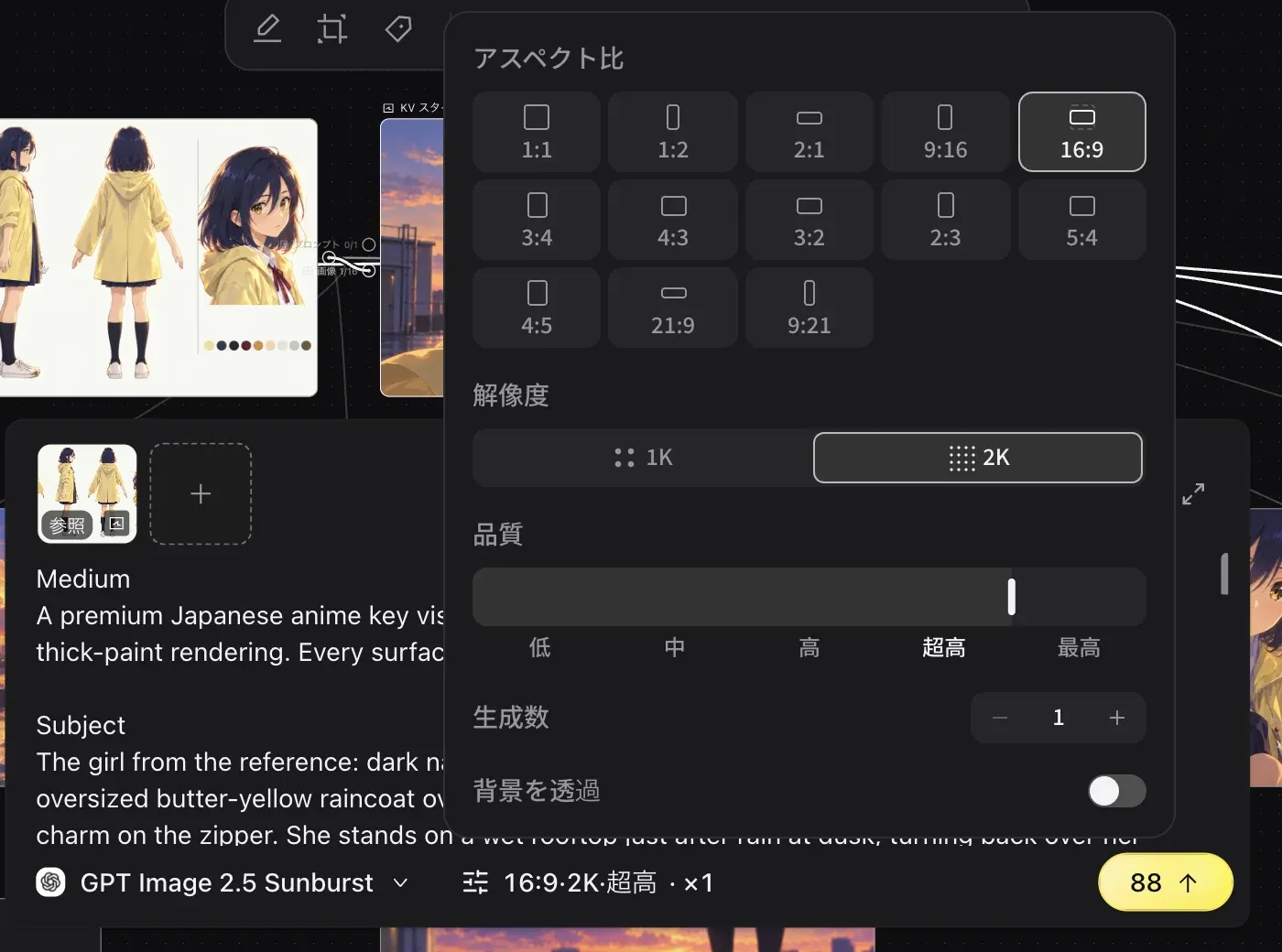
The settings shown depend on the model. For example, Midjourney shows only "Generation count".
Add reference images
Type @ in the prompt to open the "Related resources" list. Keep typing to filter it. Here, choose "ヒナ 三面図" and "KV スタイル基準".
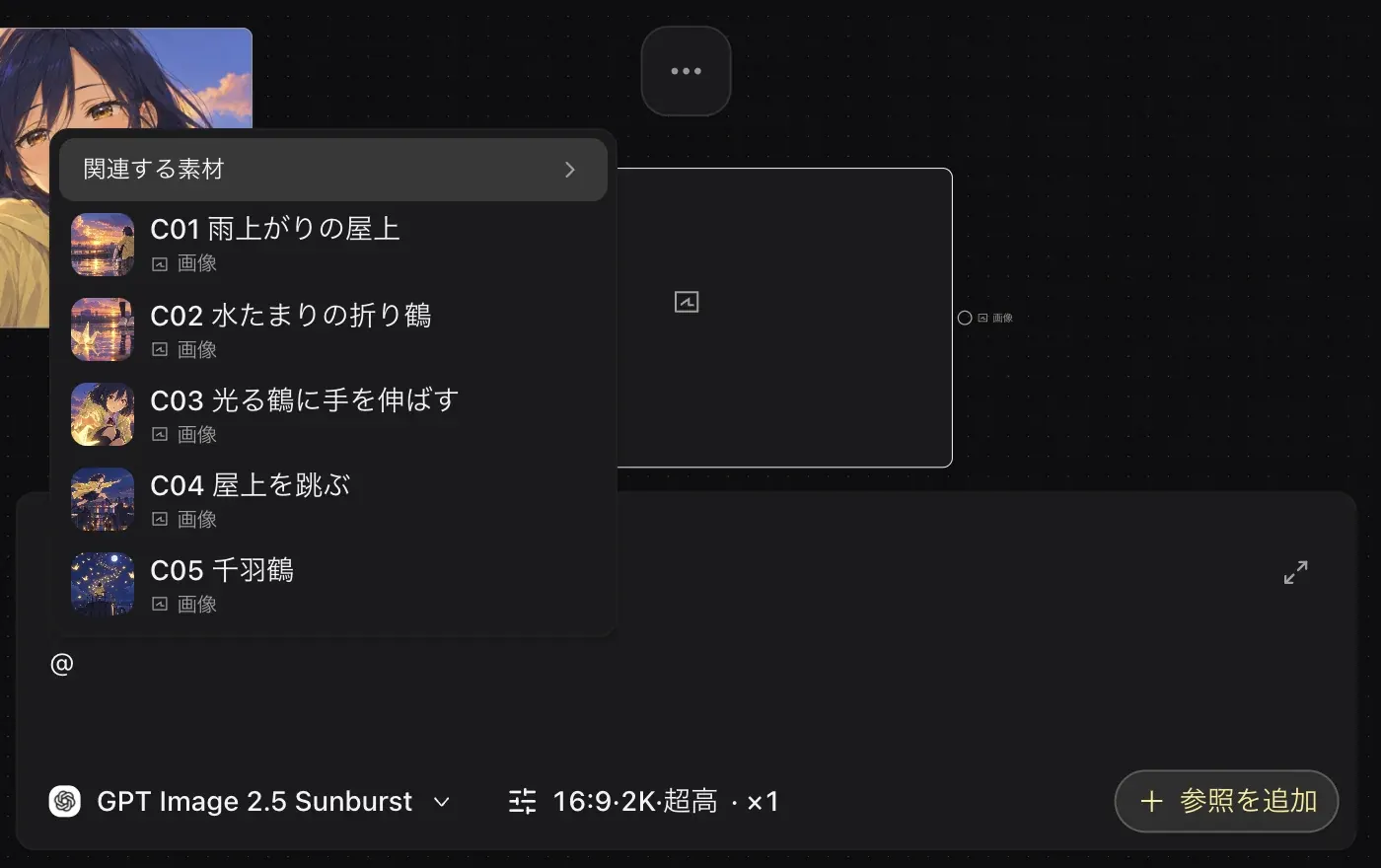
Each item you choose becomes a tag in the prompt and is also added to the reference image field at the top of the input panel. You can also pick a node on the canvas directly with the + in the reference image field.
Submit
Click "Submit". The credits shown on the button are used.
Check the results
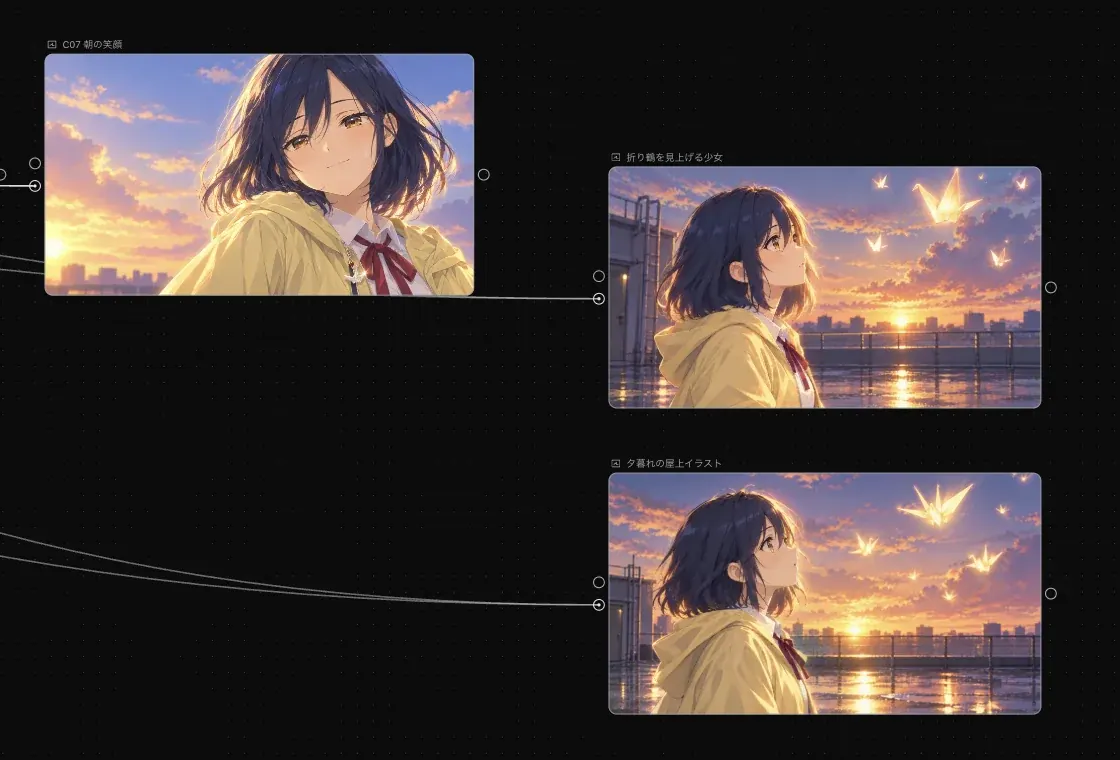
Generated images are added to the canvas as new image nodes. If you set "Generation count" to 2, the results are created as 2 separate nodes. They are not combined into one node that you switch between.
Tips
- To keep drawing the same character, make one character sheet first, then reference it with
@in every storyboard after that. Docs Demo's C01–C07 all reference ヒナ 三面図 and KV スタイル基準. - If you get too much fine speckled texture, add instructions to the prompt such as "reduce speckled texture" and "keep the scene moderately complex".
- Higher "Resolution" and "Quality" use more credits. Measured values for GPT Image 2.5 Sunburst (as of October 2026) are below. Check the "Submit" button for the current values.
| Resolution | Low | Medium | High | Extra high | Maximum |
|---|---|---|---|---|---|
| 1K | 4 | 9 | 36 | 63 | 143 |
| 2K | 6 | 13 | 50 | 88 | 199 |
See Video generation to make video from your images, and Smart tools for one-click edits such as changing the angle or making a character sheet.