Sharing and collaboration
How to share a project with a view link, open the community submission page, and find projects shared with you.
You share a project from "Share" at the top right of the canvas. Send a view link and the recipient can view the project. From the same popover, you can also open the page for posting your work to the community.
Before you start, note that sharing can be managed by the project owner and by the workspace owner or admins.
Share a view link
Click "Share"
Click "Share" at the top right of the canvas to open "Share project". The project members appear at the top ("You" for yourself, "Owner" for the owner).
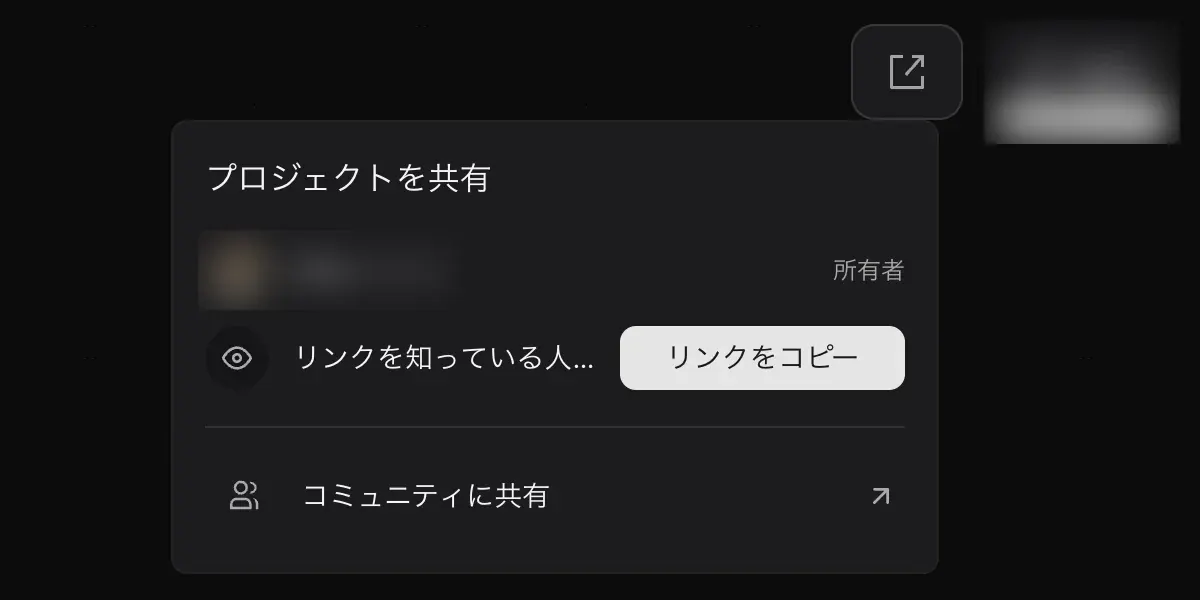
Click "Copy link"
Click "Copy link" next to "Anyone with link can view". Anyone who has the link can view the project.
Send the link
Send the copied link to the other person by chat or email.
Post to the community
Click "Share to community"
Click "Share to community" in "Share project". A snapshot of the project is created, and the community submission page opens in a new tab. The canvas shows "Community submission opened.".
Fill in the submission form
The video to post is not attached automatically. Upload your exported video yourself. See Community for the form fields.
Open a project shared with you
Projects other people have shared with you appear in the "Shared with me" tab of the project list.
Work as a team
Projects created in a team workspace appear in that workspace's project list. See Team space for details.